The US editions of QuickBooks prior to the 2009 release don’t provide support for multiple currencies. One common question I see from non-US businesses using these versions is “How do we change the currency symbol on my invoices?”. Today I’ll give you a few pointers on how to handle this. I will not be talking about how to deal with multiple currencies from an accounting standpoint. Please note that with the 2009 release the product supports multiple currencies.
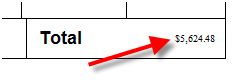
In a typical installation for a US based business you will see the US dollar symbol on the total of your invoice.
There isn’t a way within QuickBooks itself to either hide that symbol, or to change it. QuickBooks picks this up from the Regional and Language Options settings in the Windows Control Panel. There are several ways we can alter these settings to affect your currency symbol, depending on what you are trying to do. Let’s discuss two scenarios:
- You want to conduct all of your transactions in a currency other than dollars – such as the Euro.
- Most of your transactions are in dollars but occasionally you need to generate an invoice in a foreign currency, such as the Euro.
Windows Currency Settings
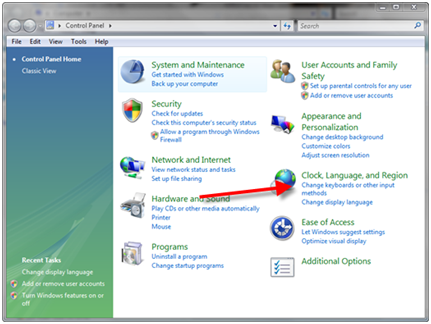
For both of these situations you need to make changes to your Windows currency settings. Open your Windows Control Panel and locate the Regional and Language Options settings. In Windows Vista you would select that from the following screen:
In Windows XP you might see something like the following:
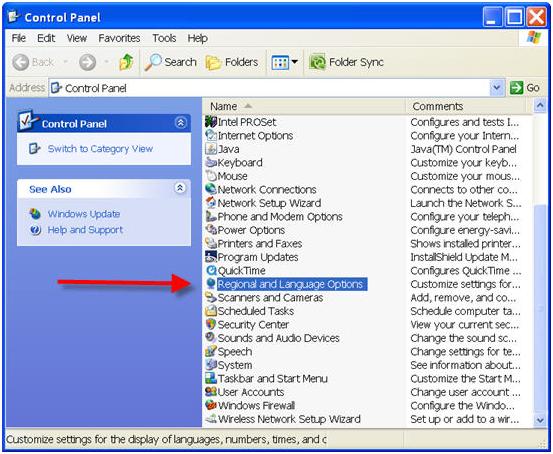
In both versions of Windows you will see the Regional and Language Options dialog – Vista’s version differs a bit from the one in XP, but they are similar. We’ll use XP to illustrate.
Changing the Symbol for ALL documents
If you want to change the currency symbol for every invoice, all you have to do is to select the new currency symbol. Once you do this QuickBooks will use the new symbol – note that all other Windows applications will use the new symbol as well. From the Regional Options tab (in Vista it is the Formats tab) click the Customize button.
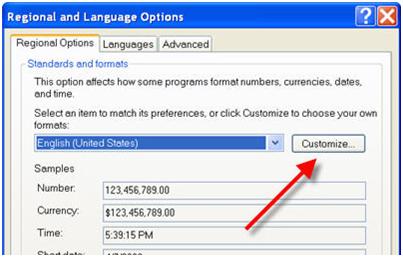
Select the Currency tab, and then select your Euro symbol from the currency dropdown list.

If you are looking for a different currency than dollars or Euros you can simply type in the symbol that you want.
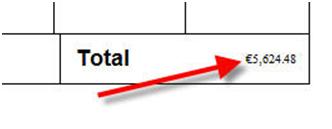
After you make this change and click the apply button you need to restart QuickBooks. As you see below, it now displays the new symbol.
Changing the Symbol for Selected Documents
A more complicated solution is needed if you only want to select the currency symbol for selected invoices. If, for example, most of your invoices are in dollars, but occasionally you need to send one in Euros, it would be very tedious to use the method described above. The problem here is that QuickBooks doesn’t provide a means of altering or dropping the currency symbol from the total on the invoice. I’ve seen a number of different attempts at working around this, usually involving extra work like dropping the total field and manually entering the value, and so forth. Here is an approach that I think works reasonably well.
First, go to the Currency tab of the Customize Regional Options window as shown above. Click on the Currency Symbol field, highlight the symbol that shows, and press the space bar once. You are replacing the symbol with a single space character. You aren’t allowed to just delete the symbol, you must replace it with a space.
After clicking apply and restarting QuickBooks, the program doesn’t display a symbol in the documents. Most likely you do want something to display, so you need to edit your template to show the proper symbol. There are several ways to dealing with this.
- The simplest is to create two templates, one for US dollars and one for Euros (or whatever alternate currency you are using). In your standard template add a $ sign (perhaps to the right of the total amount), change the “Total” label to be “Total $”, or a statement like “All amounts in US$” in a text box. Unfortunately you can’t have a floating symbol that is always at the left of the total amount. Then create a copy of this template to be used for Euro invoices, and insert the Euro symbol or statement.
- A more sophisticated approach might work if you are always billing customers in the selected currency. Create a “custom field” in the customer list for “Currency”, and insert the currency symbol or statement you want to use in this field for each customer. Then edit the template to add the currency symbol field in the appropriate place. Then you only need one template, and the currency symbol will be taken from the customer record.
Please note that with the 2009 release of QuickBooks they have added a multiple currency feature, so hopefully you won’t need to be concerned about this issue. However, in some cases, you will still find that the Windows settings affect how the program works (particularly if you haven’t enabled the multiple currency feature).
Thank you ! a friend of mine asked the same question and its problem resolve by the help of your blog . Thank you for you important and help full information
Absolutely brilliant!
Amazing that this product has so many limitations.
Thank you so much.
I had to retouch the invoices in photoshop!
i just installed quickbooks 2009 simple start and need to change the dollar currency to sterling… have tried doing as you say but it doesn’t change it.
any help?? thanks
Sarah, I tried this on the 2008 US version of Simple Start, and it worked for me. Are you using a non-US version, since you have a UK address? I can’t say if the same things would apply there, as those are different versions than the US versions. And which method did you try – the one for ALL documents or just certain documents?
I found this tip on google while I was trying to help a friend find out why quickbooks was changing the decimal points in what she was entering. I was able to determine that the currency was off, but could not get it to adjust within quickbooks. Without your blog I would not have realized that having her change windows settings would solve the problem. Thanks for all of your help!
Thank you I was going to get charged $4.90 a minute to try and get this info at support. blessings to you.
Thanks. It worked
Many thanks. I was going round the bend, but figured that there was a logical solution to the problem.
Your article “Currency symbols & Quickbooks” certainly pin pointed the simple solution.
Thanks again
Thanks much!
Spent lots of time on my own trying to figure out till I came across this.
Much appreciated again!
Dear sir,
How can we change currency symbol in QuickBooks Cash
Register Plus Free Edition.
Thanking in anticipation
Sajeel, I don’t work with that product, so I can’t really answer that. If it works like other QuickBooks products, then it should also pick up that value from the Windows settings.
Thank you! I have been battling with this for quite a while and never realised how easy it is to set up!!
Your answer is great!
Thanks a million..This has really helped. Cheers
If you enable the multicurrency feature in QB Premier, the product controls the currency directly rather than relying on the Windows settings. Good and bad.
Unfortunately, it always printing a three letter currency designation. For the U.S., it prints “USD” rather than “$” and provides no way to change it. Rather strange that upon enabling the multicurrency feature, all our invoices now show USD with apparently no way to to change it. Both product support and a contact in development have confirmed this deficiency.
Dick, you are correct. If you wish, you can use a third party product to print the US invoices with the $ symbol. One example is CCRQInvoice, which is a product that my company produces.
Excellent…!! Thank you so much!!
WOW, fantastic i am really glad and really happy YOU solve my this problem… i was exploring this into QuickBOOK since 2 weeks….. and also i shocked when setup in a seconds, how easy is that… REALLY thanks
How to change currency using mac
Christie, I’m sorry, I don’t work with the Mac version so I can’t answer that. Try going to the Intuit Community Forum, where there is a section on Mac questions, and ask there. http://community.intuit.com/category/quickbooks-for-mac
Hi ,
How do i change currency from dollar to qatari riyals…
thanks
Excellent! Thank you so much!
Excellent ….
i spent several days
i talk several persons
to find ….. no anwer
Great
Thsi works for version 2009 and before but how do you change the currency symbol in QuickBooks Premier 2010?
George, this works in QB 2010 as well (I just did a quick test to double check that it worked, and it did). But, if you have enabled the “multiple currency” feature, that changes things. The currency symbol isn’t used, it takes the abbreviation for the selected currency. Have you enabled multiple currencies?
what about if my currency doesn’t appear in the list!!!
I’m from the Dutch Antilles Curacao and we use Nafl.(florin)!!
So please give me a hint how to modificate the currency in QB 2009 premier in Xp-VISTA and windows 7
Thanks
Best regards
Sim
Sim, in Windows 7, select “Region and Language” in the control panel. Then click “additional settings” and click the “currency” tab. For “Currency Symbol” you can enter whatever symbol you want to use, directly, without having to use a dropdown list. That SHOULD be picked up by QB.
I have QuickBooks 2010 and need to add two bank account one USD and the other EGP.how cani work with both accounts.
kindly advise
Kamal, it depends on the nationality of QuickBooks you are using. The documentation will talk about multiple currencies – you need to enable that feature, then you can set the currency for each bank account.
Marvelous, i was getting a problem with quickbooks pro and this worked. Thanks!!!
how can we change currency in quick book for example USD to Afs
thanks
Lal Mohd: That is what this article explains – if you are using one currency, change your Windows settings, QB picks it up from there.
thank you so much. i’ve been looking for this answer since 2006… finally.
thanks much sir!
Tryed but not changing…
Help me.
Sanjay, you would have to give me more info than that. What version/year/nationality of QuickBooks are you using? What symbol appears? What version of Windows? Where are you located?
Hi Sir,
I am planning to buy Quickbooks Premier Industry Edition 2012 from Amazon US but I am just not sure if this version can support multiple currencies since Amazon did not specify this feature. Do you think it can support multiple currencies? I would really appreciate your expert advice. Thanks!
As long as it is the US version you are OK, Roy. See this article that lists features by version: http://www.sleeter.com/blog/2011/09/quickbooks-feature-list/
Thank you Charlie. Your guidance is very much appreciated.
thank you thnak you thank you sir really very very helpful you made my day. thanks a bundle sir love you
Thank you very much.
Many blessings
Fantastic!!it works well,at first i thought it wouldn’t work for Windows 8,bt its amazing…works in seconds.Much thanks Sir.
Which version is the best to use as of now in order to avoid this hectic way of changing currency to suit your need?
All versions of QuickBooks for Windows are going to be sensitive to your Windows settings for the currency symbol. If you work with one currency, that is all you need to worry about. If you are working with multiple currencies, you would enable the “multiple currency” feature. Note that once started, you can’t turn that off, so make sure you understand what the changes are before you jump into that.
I have problem with Arabic currency what i can do with it my Quick Books English system but i working with BD
What problem?
(1) Please i am trying to print cheques from quickbooks, the align feature in the printer setup is not setting on the paper, i have tried all vertical and horizontal setting it has not worked. My cheque is customized to print on A4 paperwith vertical margin of 1.5inches and horizontal of 1.8inches.
(2) In the print cheque QuickBooks cannot convert the decimal numbers to words. For example if the figure is $102.23. QuickBooks will show One hundred and two dollars 23/100**********. How do i get QuickBooks to write the 23 cents in words.
Shakirat, QuickBooks is set up to use a standardized check size, you aren’t using that, so you won’t be able to modify the settings to your satisfaction. And, you cannot change the way it displays the cents in the description. There may be an addon product that can give you more flexibility, but I’ve not worked with any of those.
Thanks for the support. Its working. I have noted the amount in words symbol on writing cheques does not change to other currencies. Its still showing “Dollars”. How do you customise this?
Thanks
There isn’t a setting in QuickBooks to control this. I don’t have a setup here (at this moment) where I can test this, but there is a Windows setting that might affect that, if QB sees it. If it doesn’t, then you are out of luck.
Thanks so much. This solved the issue.
Is there any way I can Convert from a UK version to a US or Visa Versa?
Reason being is that I need a Newer UK version and I can only find a US version.
Current version is : 2008 pro UK
Willing to use : 2014/2015/2016 UK version,
US version does not comply with our Tax regulations..
Converting between the UK and US versions is difficult. You can export/import IIF files, but that only gets the list elements. You can use tools from http://www.baystateconsulting.com, or q2q.us, but that is expensive and complicated. You may be able to use the services at http://www.qbornotqb.com, but they are expensive.
However, Intuit still sells the UK version of QuickBooks Pro. See it at https://www.quickbooks.co.uk/accounting-software/desktop/pro/
I have been looking high and low for the answer to this problem. This is the only thing I have found that makes any sense at all! you are a lifesaver!! I would have been working on this problem for days and days…. all other search results are bringing me into developer tools etc. once again, my hero.
Thanks a lot, I have been suffering for quite a good slice of my time to set the currency symbol in QuickBooks 2013, and finally found this solution to be a helping ONE.
Thank you once again.
Thanks a lot, I have been suffering for quite a good slice of my time to change the currency symbol in QuickBooks 2013, and finally found this solution to be a helping ONE.
Thank you once again.
This has been of great help.
That’s much
Thank you so much. I spent hours looking for an option to change currency in quickbooks, until I came across your blog and in minutes, it worked like a charm. THank you.
You are welcome!
Thanks for your great idea
Worked for me wanted to change from $ to Rand R, stay blessed
Thanks a lot mate. Your blog really saved the day. It was such a small change that was required. I was going through all the settings in Quickbooks for nothing!