Last week in my posting on Understanding QuickBooks Reorder and Build Points I talked about how QuickBooks uses the Reorder Point in reports to tell you when to reorder purchased parts. Today I will discuss some ideas on how to select a reorder point for your items.
There are many different ways of deciding on a reorder point (which I’ll also refer to as a minimum stocking level), and each business has its own special requirements. I’m going to define a few terms and offer a few suggestions on one way to handle this in QuickBooks. Please feel free to comment on how you use this in your business!
A Simple Reorder Point
This isn’t a difficult concept to understand. You have items that you are selling and you can’t sell what you don’t have on hand. You establish a minimum level that you always want to have on hand and generate a report periodically that tells you if you have fallen below that minimum level.
The difficult part here is determining WHAT that level should be. You don’t want to have a lot of money tied up in inventory that you don’t need, or in items that have a limited shelf life. There are a lot of ways to come up with this value, the best approach depends on your situation.
The simplest approach is to look at number of items that you have consumed in a period of time, in relation to how long it takes you to receive the item once you place an order. If it takes a week to get the item once an order is placed, you want to have a week’s worth of items on hand so you can fulfill sales while waiting for an order to arrive. So, a conservative value for a reorder point would be a weeks worth of sales.
Unfortunately, QuickBooks doesn’t provide “lead time” calculations for you. You will have to determine this value for yourself.
Let’s look at an item, “Widget”, that takes a week to order typically. I’ll look at the Inventory Stock Status by Item report, and select this month as the period of time (you should filter this report to show only inventory part items). Look at the Sales/Week figure on the right, which shows that I’m selling an average of 13.5 Widgets per week. You can pick a longer timeframe if you wish.
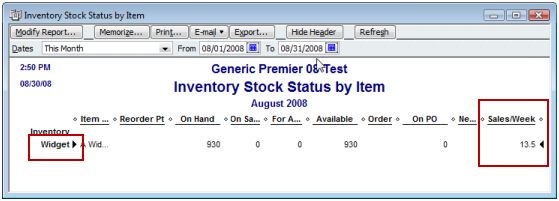
How do I get that 13.5 value into the reorder point? You can simply edit the item record, which works for a single item, but if you have hundreds of items this is tedious. Instead, let’s use the Excel Export/Import feature of QuickBooks. For more information on how to work with Excel imports see my article on Importing Inventory with Excel.
Select the Export button at the top of the report to export this to Excel. In Excel, I’m going to add a column titled “Type” and enter the value “Inventory Part” for each of the items. I’ll also add the title “Item” to the item column. Save the spreadsheet and close it.

Going back to QuickBooks Select the Excel button at the bottom of the item list and select Import Items. Select the Advanced Import (if you are using QB 2008 or later, earlier versions give you this import by default). Select the reorder spreadsheet you just saved and select Add New from the Choose a mapping dropdown.
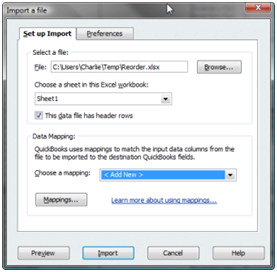
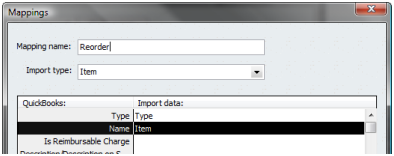
Give the mapping a name, set the import type to “Item”. Set the Type column to Type, and the Name column to Item.
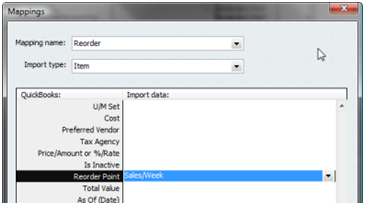
Scroll down and set the Reorder Point column to Sales/Week.
Save this and click the Import button. You will see a warning question, select the option shown below.
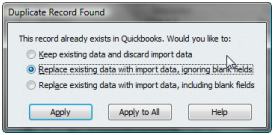
This will import the Sales/Week value into the Reorder Point column for inventory parts.
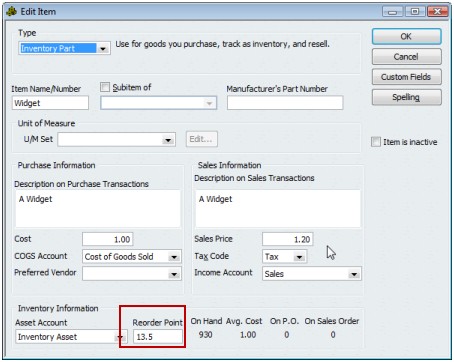
This is a very simple way to come up with a conservative reorder point. You want to be careful, having too much inventory on hand can be costly. However, running short of items can also be costly. There are many ways to come up with a reorder point or minimum stocking level, you will have to decide on what works for you.
In a future article I’ll talk about some other variations of how to come up with this value. Leave a comment here if you have any suggestions or comments about how you determine the value for your business!
Just want to say thanks, even 5 years later this was very helpful!
Some things just never change! Thanks…
I have Quickbooks Enterprise Wholesale & Manufacturing 8.0. When I try the above steps, it does not import the item, but gives an error that I must specify an income account. So, I put Sales in Column M (previously unused) and mapped the income account to that column. When I try it again, it doesnt give me that error, it says that I have to specify an asset acct. All I want to be able to do is change the ReOrder points for all of my items (several hundred) at one time.
Any tips?
John, are you sure that you are matching the item ID’s and UPDATING items, instead of ADDING items? You have to have all of those account types when ADDING new items.
In any case, even if you get this when updating, the best thing to do is to export the list to Excel FIRST, make your changes there, then using that same file to import and (if necessary) map the fields it is nagging you about. But, it sounds to me like it is trying to add new records.
Make backups BEFORE doing any imports!
I’ve followed your steps exactly. I don’t see any different place to go for adding a new item vs. updating an item.
If the item ID that you have in the import exactly matches an existing record, you will be updating that record.
If the item ID that you have in the import does NOT match an existing record, you will be adding that record.
My guess is that you don’t have an exact match of the item ID on your import. That is why I suggest that you do an EXPORT of the item list first – so the columns have all the proper info and there is an exact match when you later import it.
I’ve realized what I did wrong. I had mistakenly chosen Item Description instead of Item in the mapping. All working now. Thanks Charlie!
What if I want to remove a reorder point?
I have old styles that are not going forward. I have removed RP from each item. These items are still showing up in my Inventory Reminder fields.
Any way to get them off of their?
*there
In the 2014 product in my test system if I delete the value in the reorder point (not enter a zero, but blank it out) then the item doesn’t show on the reminder list for inventory to reorder. What year/version/nationality of QB do you have?
Thank you for the suggestion. I went in added a bogus Reorder Point, Saved and then went back in to delete the RP. Worked. Seems kind of weird.
We have Premier Manufacturing and Wholesale Edition 2014 (US).
Thank you again for the help.
How do you see the average sold per month?
Not sure what value you are looking for. Average quantity sold per item, looking at the total number sold each month and then taking the average of that? Or something different? I’d take the total sales per year and export the report to Excel, then divide by 12