The Item List in QuickBooks can be modified to show different columns, which can make it more useful for you. There are some odd features here that I’d like to explain, in this quick tip.
If you right click on the headings in the item list you will get a dropdown menu.
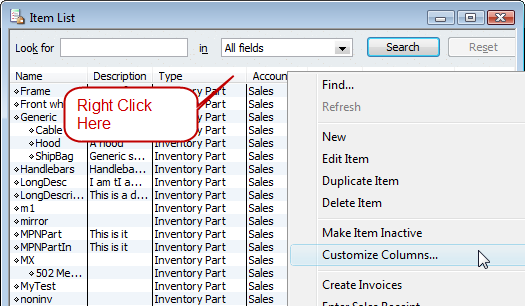
Select the Customize Columns option.
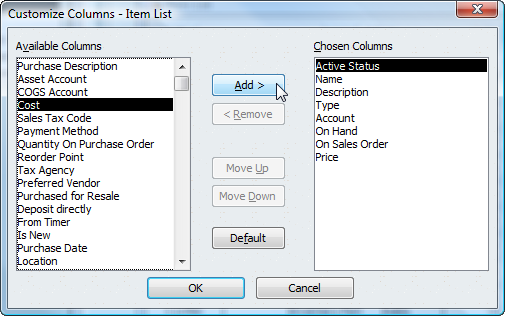
You can select a field in the available columns list and click “Add” to add it to the chosen columns list on the right. When you save this list, the columns will show in your item list. I like to add the cost and reorder point columns, as well as some of the custom fields I work with.
Some Odd Fields
There are a few odd fields that show up in the available columns list that can be confusing. I get a lot of calls on one – Location. QuickBooks doesn’t handle “locations” for your inventory, but here it is, a “location” field in the available columns! You can add it to the item list display, but it never shows any value, and there doesn’t seem to be a way to enter a value there. “Location” doesn’t show in the Edit Item window. So why is it there?
It took awhile for me to catch on – someone in the Intuit Community Forums explained this to me. The fields that are listed here include fields that are used in many different item types, including those used for the fixed asset item. If you go to the Fixed Asset list and add an item there, you see that there is a “location” field. This is the field that is listed in the available columns list. Odd, useless, and very confusing. There are other fields shown here that are also from that item type, such as “purchased for resale”.
So if you find them, don’t bother trying to add them to the item list display, you can’t use them there.
I want to add a field in front of the name field to number each item. That way when my electricians fll out their work orders all they have to do is put in a number and it will correspond to the line item. How do I do that?
Wanda, I’m not sure I understand what you are asking, can you explain in a bit more detail?
How can I assign a class to each specific item without manually adding it in the invoice?
Julie, in QuickBooks, you can’t. Sorry. The class value in the column will default to the class you pick at the top of the invoice.
I am using quickbooks Premier and am trying to set up a second checking account for deposits to that account. I have a second account set up and a undeposited funds account. I can enter the information regarding the payment and it flows to the 2nd undeposited accounts file but does not flow back to the screen where the deposits are listed so that I can print a deposit slip. I have checked my first account and have the 2nd set up the same way. What am I doing wrong.
Judy, that is quite a bit off topic, you would be better off trying the Intuit Community forums. Also, I can’t really say what is going on without being able to see your information – a blog comment like this just isn’t a good way to figure those things out…
I am into retail how do i include the sizes, colors and maker of the shoes i sell in the custom field and use this when buying new stock i want to keep a track of all sizes sold all colors sold etc but bill cant be customise under template
Nike, I don’t have a good answer for you because QuickBooks doesn’t have a good way to handle this kind of situation. QB POS handles it, but not QB itself. If you want to track sales by each color/size/make, you have to enter an item record for each color/size/make, and show it as a separate item in the invoice.
You will have to set up a numbering system for size and color. 1000 can be black, 1001 can be white, -01 can be size 6 -02 size 7 and so on to look like this 1000-01 would be black size 6 more sections for more options. Or ad a small code at the end of the purchase part number to define size and color.
HOW DO I ADD ANOTHER COLUMN TO MY ITEM LIST? IS THERE ALSO A WAY TO LIST MY EXPENSES TO EACH ITEM? I AM HANDLING INVENTORY OF CARS AND EACH CAR HAS VARIOUS EXPENSES THAT I WANT TO INPUT AT THE SAME TIME WOULD BE BASIS FOR DETERMINING MY COSTS BEFORE RETAIL FOR EACH CAR
Cris, see this article for how to create “custom fields”. https://qbblog.ccrsoftware.info/2008/07/custom-fields-in-quickbooks/
Then you can add them to the item list as shown here. And to invoice templates, etc.
For expenses, that is hard to describe in a blog comment. Several ways of doing it – depending on the volume you work with. You can use inventory adjustments (tedious, though), or you could set up each car as a “job” and use the job costing features (depending on what QB product you have).
I am using QB Pro 2011. I need to allocate a cost for each item on my item list available for sale so that when a sales invoice is created the inventory account is automatically updated to reduce the cost value being carried as inventory?
Greg, I’m not sure what exactly you are asking. If you have an “inventory part”, when you buy the item you enter the cost. This updates the average cost of the item. When you sell the item that average cost is used to post a value to the COGS account.
Hi I’m new in quickbooks and installed premeir 2009 in my computer.I wanna learn it.but there are lots of books I’m using it.in no one of them,has said where to start from,please help me beginner in quickbooks where should start from and remember I’m a selfstudy person and understand accounting tricks and principles thanks for instracting me
Take a look at my list of training resources at https://qbblog.ccrsoftware.info/2011/10/quickbooks-support-and-training-resources-3/
When I move an item from one warehouse location to another and I want to “delete” the first location so my associates do not go to the first location to find it is empty, how do I do it without permanently deleting the warehouse location?
That is off the subject, John, but no, you can’t, if you are talking about the Advanced Inventory option for Enterprise Solutions
Good one information. Thank you so much for quickbooks item list.