Buying inventory is simple in QuickBooks. Create a purchase order, receive the items, enter the bill, pay the bill. Simple! Sometimes things don’t occur in this nice sequence, and it isn’t always obvious what the best procedure would be. What if you have to pay the bill before you have received the items? In this article I’ll give you some suggestions as to how to handle this situation.
Update: Intuit has added an “Enhanced Inventory Receiving” option in QuickBooks Enterprise V12 that addresses this specific issue – allowing you to create a separate receipt and bill transaction. USE IT WITH CAUTION, because (1) you can’t turn it OFF once you turn it ON, and (2) it potentially can retroactively alter your financial statements if you turn it on.
Entering Bills Before Receipts
If you are using purchase orders, the normal process is to create the PO, then to enter the bill and receive against the PO. The bill shows up in Accounts Payable, the inventory items are received. However, if you are asked to pay the bill ahead of receiving inventory, this process won’t work. If you follow the normal process you will have the bill available to pay in the vendor center, but your quantity on hand for the item will show that they have been received and are available to sell, which is not the case.
You can enter a bill that is not associated with the PO or receipts of items, but later when you receive the items you are still asked to enter a bill. This must be done so that you can enter the proper cost of the received items. You don’t want to enter ANOTHER bill, and you want to close out that open PO, so what can you do?
The key is to use the expenses tab of the bill initially, and later change this when you receive the items. Let me show you the steps to take. We’ll start with a simple PO for a Cog.
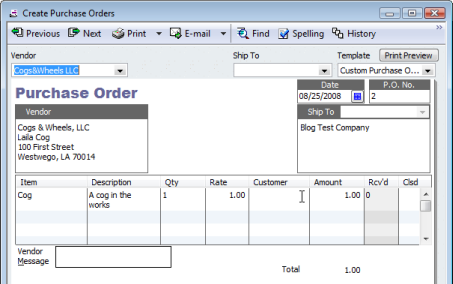
Create a Holding Account
First, in our chart of accounts (COA) I am going to create an other current asset account that I will name Advanced Inventory. You can give this any name that you want, the idea is that this is a temporary holding account for the cost of the items. Talk to your accountant about this account – some people might want to make this a different type of account (an expense account, perhaps).
Entering the Bill
Now we’ll enter a bill for a PO. I’ve selected the PO, and the program shows the items to be received in the items tab.
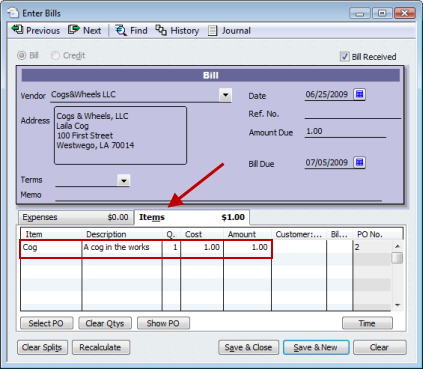 If we enter the quantity received at this point the items are available in inventory, and that isn’t what we want. We are paying for the items, but we don’t want the quantity on hand to show that we have them.
Start by entering any corrections to the cost value of any item to match the bill. Then look at the items tab and you can see what the total value of the order will be ($1.00 in this case).
Click the Clear Qtys button at the bottom of the window to set all quantities to zero – the items tab will show a value of $0.00.
Select the Expenses tab, select the Advanced Inventory holding account that we created earlier, and enter an amount that is equal to the value that you are going to receive (the value that was showing on the items tab earlier).
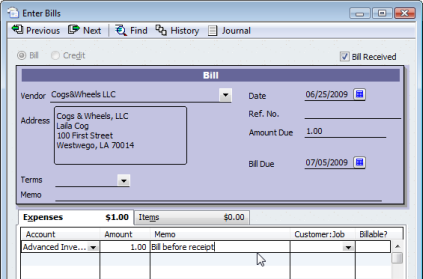 Save the bill. You haven’t received the items yet, but you have entered a bill for them. The bill shows in your accounts payable. The cost of these items now show in the Advanced Inventory account. You can look at that account at any time and get the value of all items that you have paid for but have not yet received.
Receiving the Prepaid Items
At a later date you will receive the items. Go to the Vendor Center and locate the existing bill, then double click on it to open the bill. We want to populate the bill with the proper quantities that you received. You want to use the original PO to fill the quantities so that the bill is associated with that original PO. You must delete each detail line that shows in the items tab. Then click the Select PO button in the lower left corner. Select the original purchase order.
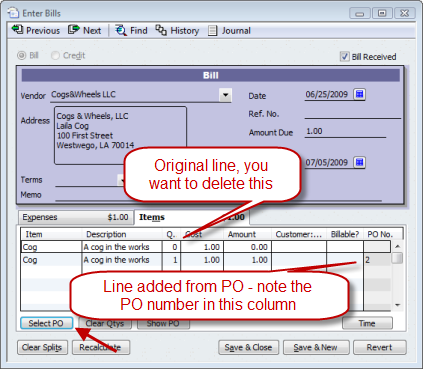 Now go to the expenses tab and delete the line (use ctrl-del to delete a selected line). Click on the Save & Close button to save the updated bill.
At this point we have:
- Updated the inventory balances.
- Posted the cost of the received items to inventory assets.
- Retained the bill, which may or may not have been paid already.
- Associated this bill with the PO, properly closing it.
- Removed the cost from the holding account (“Advanced Inventory” in my example).
I hope that is clear – let me know if it isn’t!
Super tip. This is a very rare situation that I have handled with differing solutions depending on the individual circumstances each time. This method will work for everyone, every time. I love consistency.
Thanks,
Karen
We use Fishbowl (hate it) .. and this is one of the biggest issues I have, we frequently pay for items in advance ( usually for items being manufactured in China) I usually wire the payment in full, the goods are manufactured, sent ocean freight.. etc.. at any rate it can be at least 6 weeks before we actually receive the goods. and when we do FB then exports a bill for this.. I find myself having to delete payments, and reissue to post too the correct bill for the items received.. its a hassle!!
If you make payment for inventory before receiving the goods, this is what I would suggest:
Post the pre-payment check to accounts payable or a current asset account called PrePaid Expenses.
Then, when you receive the goods and enter the bill, post the bill (from the po, if applicable).
Then, apply the credit (from the check, if it hit a/p), or enter a line on the expense tab to minus the prepaid expenses account, giving you a zero bill, if paid in full, or a remaining balance, if not.
Laura D
With all do respect to the poster of this solution – This is something Intuit should automate and simplify.
The proposed solution is works… but lets face it – its a hack.
Bill – true – and you can send feedback to Intuit to ask them to improve the feature. In the meantime, all we can do is to think of ways to make it work (such as I suggest here), or you can find another software solution. I don’t have any control over what they do (and if I did, there are a LOT of things that I would change…)
Does any body explain me the Laura Dion method?
Thanks
I often have to pay for inventory before I receive it and I do this:
I set an account “prepaid expense” as other asset and debit the amount of the payment to the prepaid expense and then credit the cash or bank account. When the inventory is received, the PO is used to create and “item receipt” by the person receiving the inventory and then I click on bill received. I use the credit in the bank to pay the invoice. This has always worked for me.
We do not track inventory. The item list is set for non-inventory items & service items and the posting sales accounts are income items. I have no purchase accounts set up on the item list. However when I record a bill into Accounts Payable, I enter it to a Cost of Goods account on the Expense tab. Will this create a problem.
Debbie, that is fine, as long as that is the account that you want the expense to be posted to…
Charlie , is this appropriate if you’re using the accrual method for accounting?
I’m trying to reconcile the fiscal year end and the only difference between the bank account and my books is a payment I had to make prior to receiving the inventory (paid in September but received inventory in October).
Cheers!
Mark, the whole reason for doing all of these manipulations is to make it valid for accrual accounting. You post the bill to Accounts Payable vs a holding account, which could be an offsetting asset. You later move the value from that holding account into inventory assets.
The bank account only comes into play when you PAY the bill for the items, not when you post it to accounts payable. So if your bank account won’t balance, you have to look at it to see if you paid the bill at the correct time, or if you are using that bank account in a transaction improperly somewhere.
Question – with this solution, doesn’t the inventory become on-hand on the bill date? For example, if you pay for the items in June but don’t receive them until August, doesn’t the bill date of June put the items into inventory as of June? I guess you could change the bill date to reflect the day you are receiving the inventory but then you lose the original bill date.
Anne, the solution I outlined is better suited to situations where you have a relatively short period of time between the bill and the receipt. If you are talking about multiple months between them it might not be the best solution. Unfortunately, the alternatives tend to be more complicated.
What we have done is input a temporary bill into an account called “A/P In-transit” and DO NOT process it against the PO we have out there. We pay that bill when due. Later, inventory is received against the PO as an “item receipt only”. We then delete the temporary bill, leaving the payment as a credit. Next we enter the bill again using “enter bill for received items” using the original bill date. Lastly, we pay the bill using ‘set credits’.
This method seems to be working but it is a lot of extra steps and has room for error. Was just hoping to find a simpler solution 🙂
An interesting approach, Anne. The advantage of QuickBooks is that it is very flexible and there are a lot of ways that you can do that might not be possible in a more rigid system. The disadvantage of QuickBooks is that was often is a common and relatively simple occurance might not have a simple answer, so we have to come up with all of these workarounds.
I forgot to mention that my client wants to see the invoice in A/P which is why we have implemented the “A/P in-transit” method and not some of the other ideas mentioned.
Help!I noticed while making invoices this morning that on the bottom left text to the total there is an advertisement Rate our business @ ZIPINGO.COM. mY HUSBAND I ARE THE ONLY ONES WITH ACCESS TO THE COMPUTER IT IS A HOME BUSINESS. hOW DO I GET RID OF IT / STOP IT FORM HAPPENING & HOW DID THIS HAPPEN WE HAVE ACTIVE ANTIVIRUS ECT . iAM SORRY IF THIS IS POSTED IN THE WRONG AREA. THANK YOU
Marge, I have never heard of Zipingo in QuickBooks – that was something in Quicken. And Intuit shut down Zipingo back in 2007. What QB product and year of product are you using?
Laura Dion,
Do you mean to create a check and expense it out to prepaid inventory. Then when I enter the bill, I will show a credit to this vendor? At that time I can apply the credit to the actual bill? Thanks for your help!
Regards,
Laura B
It is very helpful since I always pay before I receive items. Please let me know how can I use $300 credit I have with my vendor and still use your method in QB 2009 manufacturing. I was trying to use HELP in QB, but it says “highlight bill pay line and use credit button”. For some reason I can’t get to that point when I can see my credit button, even though I have recorded $300 credit for this vendor and it is showing in QB. Thank you.
I figured that out. No answer needed. Thank you.
I’m missing something here…you are going back and changing the original bill? If these transactions span more than one calendar month, you are effectively changing balance sheet accounts after a balance sheet has been produced and published. This isn’t good accounting practice.
Christine, timing is an important issue, particularly in QuickBooks. This particular solution works best if the time difference between the bill and the receipt is short. The longer the difference in time, the less likely this is to be applicable or proper.
Charlie,
Thank you for the tip. I plan to use it, since I purchase most of my inventory on ebay and pay for it using Paypal/credit card. If I do follow your instructions, how would I record the payment if I pay for the inventory using a credit card and the inventory is yet not received?
Aleksandra: I haven’t actually played with that directly – it SHOULD work the same way in the Credit Card window as it does in the Pay Bills window. My recommendation is to make a backup copy of the file and then test it. The only possibly interference would be to your credit card reconciliation, but since you aren’t changing the amounts, that should not have an effect. But I haven’t tested that at this moment.
This may work perfectly for what we do as well. Can you tell me if this can be applied to when a patient buys a series of treatments, pays for them in advance and comes in every month to get them.
Brad, I would do something very different there, too complicated to describe in a comment like this. That is a prepaid income or “retainer” kind of situation
What is the best way to handle our situation? I have outlined an example. The entire process for one purchase order can be 5-6 months.
January – create purchase order and pay 1/4 of payment toward purchase order.
March – Received inventory. Most cases all inventory is received but what do you do if all of it was not received?
April – 1/4 payment toward purchase order
May – 1/4 payment toward purchase order
June – Final 1/4 payment toward puchase order
Thank you.
Jean
I do this every day. Here is how I accomplish it.
I’ve setup an account called “Deposit on Inventory” the account is an “other Asset” account.
January:
Pay the 1/4th deposit to vendor in this example it is $2500 of the $10,000 total. Use the deposit on inventory account on the expenses tab. It will then post a debit to other assets and a credit to AP.
March:
Since the payment date and the item receipt can be done on different days, these are different transactions.
First:
Pay the additional deposit of 1/4th. Post to deposit to the deposit on inventory account.
2nd
Receive the 1/4th of the goods.
On the bill receive in the goods. On the expenses enter a credit to the deposit on inventory for the exact amount of the items received (not what you paid they may be different). If you did not receive all the items, no worries, just offset the bill so it equals zero.
Repeat the process until all items are received in and the original deposit has been depleted.
Now here is the MOST IMPORTANT STEP. Go to the Deposit on Inventory account and reconcile it to ZERO. What does that mean? You open the register and right click reconcile. Put an ending balance of zero in. Check off all the deposits that have been FULLY used. Do not check off any that are still out there waiting for items to come in. What does this accomplish? You know in the register what makes up the value in the account and this insures you do not under or overapply the intial deposit. I create a quick report on that account, filter to UNCLEARED items and I have a great report of what is outstanding in the Deposit on Inventory account. I have done this for 3 years at a client and it works beautifully.
I also keep the original copy of the po and log the “offsets” when I credit this account as a double check. All the offsets must equal the total deposits paid on the PO.
Hope that helps and thanks to Charlie to opening up these discussions and blogs!
Excellent suggestion. Close to another suggestion made of setting up a Prepaid Account
Thx
Kathleen,
Thank you very much. We will give it a try.
To be honest, this is extremely time comsuming. It is a good idea for several transaction. However, like my company, we prepay about 300 transaction each month and receiving is handled by receiving department. It is very hard for them to located the existing Bill to perform the second step. I am still looking for the better solution to solve it.
It is a complicated process, because QuickBooks generally treats the receipt and bill as one transaction.
Note, however, that with the release of QuickBooks Enterprise V12 there is an “enhanced inventory receiving” option that lets you separate the bill from the receipt. See my article on this at http://www.sleeter.com/blog/2011/09/quickbooks-2012-enhanced-inventory-receiving/
And that is only available if you move to Enterprise, in the 2012 release. THERE ARE RISKS if you convert an EXISTING file to use this feature – look at the cautions in that article.
I think I found another way of doing it. To avoid all the entries, what I do is make a payment to the vendor via the checkbook (I usuallt wire funds) and choose the Advanced Inventory asset account. When the product is received, I create the bill from the PO. I then make a credit for the Advanced Inventory payment and pay the bill with the credits. This makes it easy for me without having to worry about all the items on the bill. So far, so good. Technically, if you are paying for inventory without receiving it, you are creating a credit anyways with that vendor. We normally pay 30% deposit, then 70% when items are shipped. Tell me what you think…
I have been ordering online and paying ahead of time. Then, when I receive the item, I do a receive without bill. I make the association, but I enter 0 for the amount. It seems to be working, but I’m wondering if I’m messing up the tracking somewhere.
Bryan, depending on details, the problem is going to be that you aren’t entering a cost for the received item. So it will have no value, and your COGS value won’t be accurate when you sell the item.
Thanks a lot for your solution. It solved my problem with quickbooks premier 2011.
Our company is located in UAE and almost all of our inventory is imported from China. Manufacturers send us the bills/invoices before they start the manufacturing process. We typically pay 30% deposit, then 70% when items are ready to be shipped. We want to keep track of the bills and the amount due of each bill.
Your solution can address this situation.
Hi Charlie,
The first thinkg I would like to thank you for sharing the solution for paying before receiving inventory. I have to do this few times every month. I do have a question wondering if you have solution for it.
I did the exactly the the same process like your posting; however, sometimes I received a part of inventory during one shipment, not full inventory came at the same time. For example, the total bill amount is $1000. I received $700 inventory in the first shipment. Now my bill shows ” expense tab: $300. and Items tab: $700.” And then the second shipment coming, so I have to receive the $300 inventory. How can I do that without double the first time inventory.
Thanks,
Joy, then I might consider some other approach than what I list here. I might just enter the bill, manually mark the PO as closed (if using a PO), and do a value/quantity inventory adjustment, to get the correct dates and values for the receipts. Not the simplest workflow.
We have a slightly different problem. We’re what is called a “pass-through” entity. This is because we almost never retain ownership of the items (there’s no “items on hand”, and when there is, there is usually just one of them). Imagine a used car sales organization, but with little inventory. When we buy an item we are usually simultaneously selling it to someone else. We buy and sell mostly second-hand items (occasionally new items as well).
We prefer to use PO’s, and we often receive partial payment for the item which we then pass on to our “vendor” (I’ll take up the reason for the quotes later). It’s a simple deposit which QB’s makes not-so-simple for our purchase-side of the transaction. It seems weird that you can apply a customer’s partial payment to his invoice without closing the invoice, but you can’t do the same with your PO’s. We would like to apply the partial payment to the PO, but we can’t without closing the PO. This solution may work, but it didn’t cover what you do if you’re only putting part of what is owed for the item against the bill. I presume we can just apply the partial against the bill and wait until we receive the balance to close out the transaction as described. (is this confusing? have I described what we do in a coherent way?)
The “Vendor” in quotations is another pet peeve about QB’s. We often have customers who can also be vendors. QB’s cannot handle this. We have to slightly change the name of the company as “customer” (or as vendor) so that QB’s will allow entering in the second listing of the company (it can be as subtle as leaving out a comma or period). The address, phones, contacts, etc. (assuming you even bother to enter that info) can all be the same, but the name cannot.
Donald, I don’t have a simple answer for you, as I’d have to dig in a lot more and get additional information. The simplest things that I can say at this point are:
-You often have to use clearing accounts to do these kinds of manipulations, and Intuit doesn’t make it easy. Tracking this stuff is complicated, sometimes you have to use notes attached to transactions to track what is going on (if Intuit provides notes in the places you want).
-I understand the complaint about Vendor/Customer, and I don’t have any solution. It can be a real pain.
QuickBooks is a very good basic accounting system, but when you get a bit off the mainline, it can be a chore to work with.
P.S. We also run our business on an accrual basis, but we do our taxes on a cost basis. This may affect how this works, I don’t know.
We use QB Pro 2012. We purchase inventory and pay by using credit card. We write a monthly check to our credit card company. So for payment, we usually have expense payments such as meal, travel, etc and then under items tab we pay for inventory. Question is should we be entering a “receive inventory” also? Because if do follow receive inventory (with or without bill), and when we pay our credit card bill, we end up double the inventory on-hand.
Wes, you have an item receipt. When you pay the bill for this receipt, select “credit card” in the pay bills window. That will enter this as a credit card payment and you will see it in the credit card reconciliation window when you reconcile and pay the credit card balance later.
Hi Charlie –
thanks for the great instructions. I just completed them step-by-step. I need to find a way to show the payment on one date and the receipt of items on another date. When I followed your instructions, it showed them to be the same date. Did I do something wrong?
Zak, in normal QuickBooks setups, you have one transaction that covers the bill and the item receipt, and they have one date. You can’t change that normally. You CAN get the Enterprise version, and implement “enhanced inventory receiving”, which gives you separate bills and receipts, but there are other issues with that. See the link at the top of this article to the first of several articles about that feature.
Having an issue with conflicting dates. At the time the charges are being posted to the credit card account that I apply to the Advanced Inventory Asset account. I need to record the correct date that the items are actually being received. I can’t change date that the charge was placed on the credit card cause that will change our records for that. Any ideas on how I can get the charge out of the inventory asset account using the actual date the items are received and not effecting the bill? Thank you
Angela, all you can do is to separate the transactions. Don’t list the items on the credit card account, use the accounts tab instead. Receive the items separately from the credit card transaction.
I can’t seem to delete the expense line — the advanced inventory without it telling me that the transaction is not in balance. I have deleted each line that is zero – on the item tab – then choose the PO, and the correct amounts are there. When I go to the expense tab – I delete the line that said Advanced inventory – but am unable to save due the the transaction not being in balance.
Charlie,
I am new to the Purchase Order process. I am trying to figure out the best way for me to account for my bills before I receive goods.
We are a new wholesale business. Since we are new, vendors are requiring us to pay in advance. PO 1 has a requirement for 50% down and 50% 30 days after we receive. PO 2 required that we pay in full before they ship the order. PO 2 required payment in check and PO 1 allowed us to pay the 50% AMEX.
So from what I gather….I can setup PO 2 by using your walk around step in quickbooks with no problem but PO 1 is probably going to me more difficult to account for because of the two part paying process? To make things worse, I found out the other day that the order has now been split up and I will now be receiving all items at different times.
What would be the best way to handle these two PO’s?
Thanks
Garett
Garett, it can be complicated. The best I can say is:
-You can do partial “receipts” of a PO. There doesn’t have to be a one-to-one ratio of PO’s and Receipts.
-Your receipts should match the actual time/quantity that you receive the items.
-You can enter multiple separate bills, and use the holding account approach to post multiple ones to a receipt
There are all kinds of variations on how to manage this. Some people will use a different process than I outline above, which won’t connect the receipt back to the PO, and then manually “close” the PO’s. Lots of ways. I suggest that you make a “test company” and try things out there, until you find a procedure that fits your business situation.
This is rubbish and beyond a joke!
Why do QB customers have to find ‘workarounds’ due to the poor programming of a piece of accounts software?
Anyone who runs a business knows that Pro-Formas are a way of life. This should be a simple one click operation and it should be addressed swiftly.
It is driving me nuts, and the solution quoted is no different to raising an PO and stalling invoice and payment until the goods arrive. At least that saves having to enter figures TWICE.
Rediculous!!
Wow, I just bought the Pro 2014 version. I was also looking for a solution for when I receive my items after and I just can’t belive this problem have been around for so long (at least 5 years here!!) Is there anyone still working on QB at Intuit or do they just put a new year number without improving OBVIOUS problems?! Holy….
It is a complicated problem, Nic.
They attempted a fix for this in QuickBooks Enterprise, but it creates some other issues: http://www.sleeter.com/blog/2011/09/quickbooks-2012-enhanced-inventory-receiving/
I thought Quickbooks might be able to handle this, but apparently I am back to doing this similar to my old accounting system.
I basically use the approach mentioned here, but with an minor alteration to account for months (sometimes across accounting years) differences in the payment and receipt of items. I think it might be in one of the other comments, but I’m not sure if I followed that one correctly.
First, enter the PO when the item is ordered. Then enter a check for payment (normally with in a week), associated with the PO, but 0 quantity for the item ordered and putting the expense to a “deposit with vendor” account. I make note of the invoice number in the memo section of the check written.
Then I enter the bill with the quantity when the item is received. I use the expense tab again, but with a negative quantity so that the bill comes out to a zero balance, but allows for the inventory update to be effective with the correct date.
Note that, as was mentioned already, any system will require monitoring and balancing regularly to make sure all entries in your “deposit with vendor” or clearing account(s) have been matched correctly – however all accounting systems require monitoring because the output of any computer database is only of the same quality as the input.
If you MUST show a bill, you could enter the bill with ####.pre-payment at the time of payment and then a zero balance bill with ####.receipt at the time of receipt, but this is an extra step because the first bill must still be paid with a check and that is a separate entry.
Please let me know if I have missed anything which would mean that this variation of your solution would not maintain my records accurately.
Thank you for continuing to be responsive to an old thread…it is clearly still relevant. I am comforted to know that I am not the only person who is forced to work creatively within the Quickbooks limitation. It would be great to have an advanced system to handle all these quirks…but as this is a side business, it is simply not practical to do that right now.
Jackie, I think you have it covered, but I would have to work out an example to be sure. It is a pain in the rear to deal with, but it isn’t a simple thing to fix programmatically also.
How do I have the “Expenses” tab area on QB Manufacturing Pro Software for the Purchase Order? I just set up the “Advanced Inventory” and now I don’t know how to have the “Expenses” area be shown for this purpose.
Please delete my first post. I found my error. The “Expenses” tab is on the bill, duh! I was looking for it on the Purchase Order.
You won’t see that on the Purchase Order – you would see it on the Item Receipt or Bill
How do you handle a purchase prepayment to a vendor when you overpay the vendor. In other words, the prepayment amount that you already paid for the inventory items exceeds the actual amount of the bill received?
I followed the instructions for paying a bill before receiving inventory. For some reason, when I go to the bill after it has been created, I don’t have a “select po” tab, just the clear qty and show po tabs and I’m not able to click on “show po” and the PO No. column is gone. It was there when creating the bill though…
Gloria, this article was written some time ago, and things sometimes move about. What year/version/nationality of QuickBooks are you using?
If I receive a bill in 2015 and the product was received in 2016 will this feature work showing the correct date of inventory received in 2016.
You should talk to your tax advisor on that one. This process would create the expense in 2015, but reduce the expense for 2016 (it might later be cleared out if you sell the item). That might not be what your tax advisor wants. You can use a similar process and use a different account other than the expense, a “holding” account in your balance sheet for example, to get around that. But that is a tax question.
I have a simple solution that will work. (I am only accounting for my small business myself, so things don’t have to be perfect.) I made a bill for the items I ordered and dated it when I expected to receive them. Then, I paid the bill with the actual dates of pre-payment. IF you don’t have any new items of inventory, then you can just change the date on the bill to the actual receipt date. So, this will only work if you don’t care about your balance sheet being correct as you will have pre-paid items missing. I report to no one, so that’s not an issue for me.
I am totally lost. I’m using QB Pro 2011. When i enter the bill, my situation is that i totally pay yo that bill yhen receive the items in two batches. That’s where I’m at a loss with your procedures. I don’t see anything like pay bill in yout procedure before receiving the items.
I am trying to receive an item and I get the the error message that I cannot use more than one AP or AR account in the same transaction. I have checked the setup on the item and I have checked the setup on the vendor and no AP or AR accounts are being used. What gives?
“Other Current Assets” or “Other Current Liabilities” accounts can generate the same error, so check for those. Also, in the vendor account settings where it shows the “prefill” accounts, make sure that one of those isn’t an A/R, A/P, or either of the “other current” account types. Other than that, these errors can sometimes be hard to pin down.
What happens if I have items missing in the stock delivery?
Last week I prepaid for my latest stock order but 4 items were missing. My supplier has issued me a credit note for which I have created one in QB but I do not know how to pay the full original amount of the purchase order but not to receive the missing items.
And then to apply the credit not of course.
Can any one help here?
Many thanks.
There are multiple ways of doing it, depending on how you want to deal with the accounting and what item “type” the items are. Some examples: Adjust the PO to the correct amount and deal with the accounting separately. Or receive the full PO and create the invoice to pay, then apply the credit memo to it, and make an inventory adjustment. Lots of variations to this, everyone does it differently.