A Floor Plan is a method that a business (such as an auto dealership) can use to finance inventory that they are holding for resale, without having to tie up their own capital in that inventory. This article reviews how you can manage Floor Plan Financing with QuickBooks.
With Floor Plan Financing you will work with a third party financing institution (a Floor Plan Financing Company) to obtain direct loans that are secured by your inventory item, such as a vehicle for resale. Usually this is not the manufacturer of the item, although it could be. This way the dealer does not have to tie up their capital into unit inventory The loan should be paid back to the Floor Plan Financing Company in full at the time the item is sold or placed in dealership use. Transactions involving floor plan financing belong in the financing section of the cash flow statement, rather than the operating section.
Please note that you should run this past your CPA or financial advisor to confirm it meets your needs, as we are not financial experts. We have not included details like fees, taxes, freight, holdbacks, rebates, credits or trade-ins in our description.
QuickBooks Setup
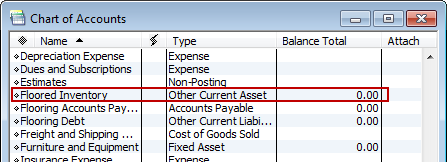
In your QuickBooks chart of accounts create the following:
- Floored inventory (usually Other Current Asset)
- Flooring debt (usually Other Current Liability)
- Flooring AP account (to differentiate this from operational Accounts Payable)
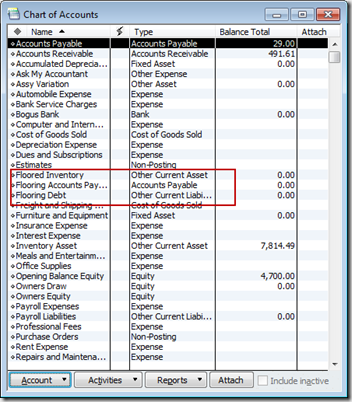
In addition you will create a Vendor account for the vendor that that is providing the vehicle, and a Vendor account for the Floor Plan Financing Company.
Inventory Item Setup
In some businesses you may want to set up an inventory part item for each unique item you are selling. This is generally only done if you are managing a low volume of expensive items. If you do this, you want to set up the inventory items in the proper way.
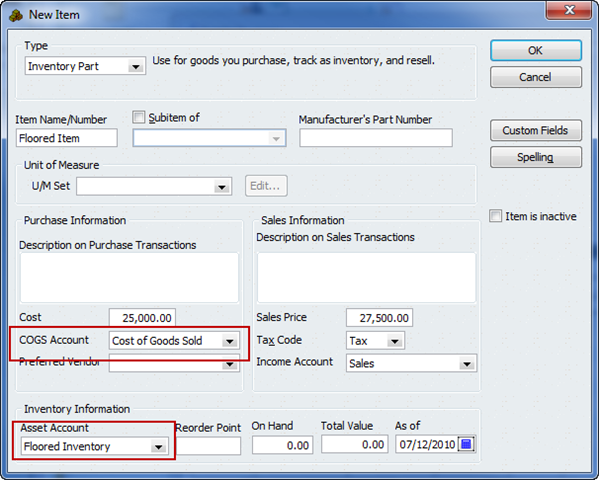
The Asset Account must be set to your Floored Inventory Asset account. When you purchase the item the cost will be posted to this special asset account, when you sell the item the cost will be removed from this account.
If you do not want to track each vehicle individually you will want to set up a non-inventory item to handle the sale of vehicles. This doesn’t have to be a two-sided item. This is needed because QuickBooks always requires some kind of item to be used in invoices.
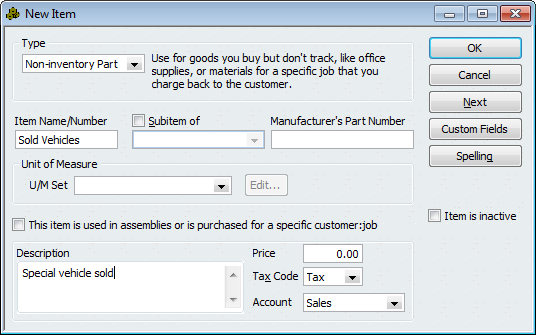
Which should you use? That depends on your situation and how much work you want to do. As we will see later, using an inventory part item will save you from having to do some manual posting. It also gives you a way to track details on individual vehicles that you have sold, along with the VIN and other identifying information you can add in “custom fields”.
On the other hand, if you use a unique inventory part item for each vehicle and you sell a high volume, your item list becomes clogged with one-time items.
Purchasing the Item
When you purchase an item to be floored (such as a vehicle), process the purchase using the Enter Bill function.
- The vendor is whoever you purchased from (not the Floor Plan Financing Company).
- The Ref # should be the VIN (for a vehicle) or other unique identifier for the item, such as a serial number. However, if you buy more than one vehicle or item on this bill you should use the Memo column for each item. DO NOT set the quantity (if you use the Item tab) to more than 1 on each line, always put each item on a separate line.
- It is important that you select the alternate Flooring Accounts Payable account that you set up (at the top of the screen).
In the Enter Bills screen you have two “tabs”, one for Expenses and one for Items. You will post the Cost (amount) of the purchase to the Floored Inventory Asset account by using the Expenses tab or by setting up a unique inventory item and using the Items tab.
If you aren’t using inventory items to manage the vehicles, post the cost of the vehicle to the Floored Inventory Asset account directly by using the Expenses tab.
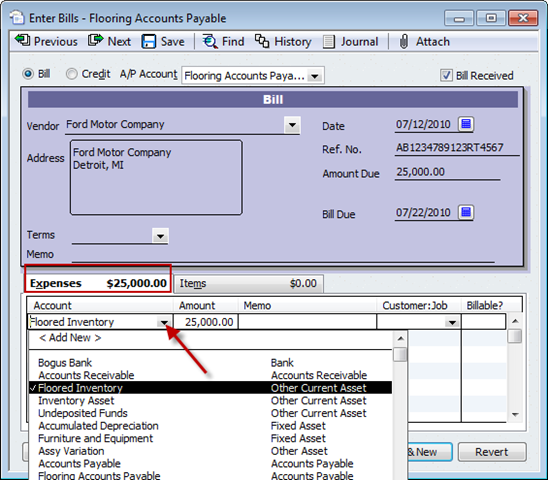
If you set up a unique inventory item for each vehicle, linked to the Floored Inventory Asset account as we described above, use the Items tab:

No matter which method you use to post the Cost of the vehicle as a value in Floored Inventory Asset account (items tab or expenses tab), you still need to document the Flooring Debt amount. On the Expenses tab, post the purchase amount as a negative to the Flooring Debt liability account. You want the bill to end up with a total of $0.00, so that the cost of the vehicle(s) will be offset by loan debt. You may need to click the recalculate button to have the amount due show as zero.

If you used the Items tab to enter the item, instead of the Expenses tab, you would see the following:
 This transaction is placing the item as on hand in your inventory asset account, with an offsetting amount posted to your liability (flooring debt) account. You have the item, but you owe money for it (you don’t have a payable transaction yet).
Vehicle Financing Transaction
The next step is to create a Bill for the flooring amount, with a due date based on the terms between you and the flooring lender. This will give the due date visibility, so you can use this for managing and prioritizing the movement of inventory.
Create one bill for each vehicle. Do not combine multiple vehicles as we allowed you to do earlier. It is unlikely multiple vehicles will sell together, so you need one bill per vehicle. In this bill you will enter the Floor Plan Financing Company vendor.
Use the Ref # for the VIN or identifying number.
The detail information on this Bill is the amount that is owed to the flooring lender, usually the same amount as on the purchase bill. This amount is entered on the Expenses tab (do not use items here, as this is the debt repayment transaction). Use the same Flooring Debt Liability account as before, and post this Bill to the Flooring AP account (at the top of the bill).
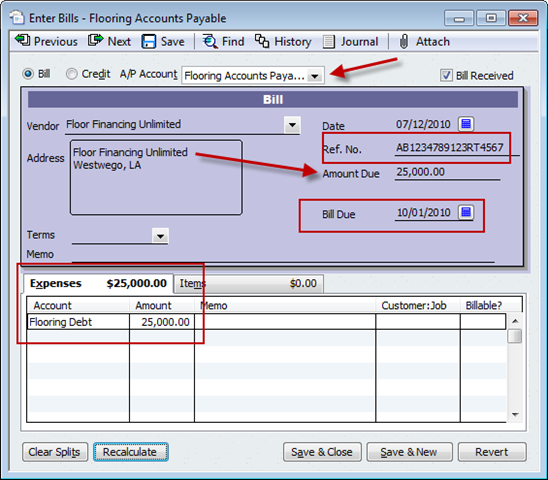
We now have a payable bill, and we have cleared the Flooring Debt liability account.
The chart of accounts should show $0 in the Flooring Debt liability account if all flooring amounts have been entered correctly, and the Flooring AP account shows the total due for floored inventory.
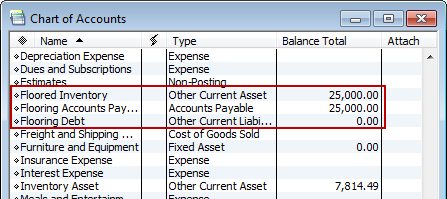
Two purchase transactions (two bills) are needed because the purchase transaction for the vehicle should not show the vendor name of the Floor Plan Financing Company. You bought the vehicle from one vendor but you owe a different vendor for the financing of the purchase.
However, if the flooring company is the vehicle manufacturer, you can do the Bill in one Step instead of two:
- Enter the Bill to purchase vehicle in the name of the manufacturer. This posts the amount to the Floored Inventory Asset account and still shows as a Flooring Accounts Payable. Use the Ref# for the VIN and enter a single vehicle per bill.
- When the sale is made, pay this Bill.
When a Sale is Made
When you sell the vehicle that was set up as a unique inventory item (on the Items tab of the bill), the sale to your customer results in the cost of the item moving automatically from the Floored Inventory Asset account’s value to COGS, as well as posting the sales price of the item to the income account you used when you set up the vehicle as an inventory item.
If you did not set up a unique inventory item for the vehicle (you entered the purchase on the Expenses tab of the bill) you had posted the value directly to the Floored Inventory Asset account. To sell the vehicle you will need a non-inventory item to handle the sale, and you will need to move the Asset value (this vehicle’s cost) to your COGS account manually. This can be done manually with a journal entry, by crediting the Floored Inventory Asset account and debiting the COGS account.
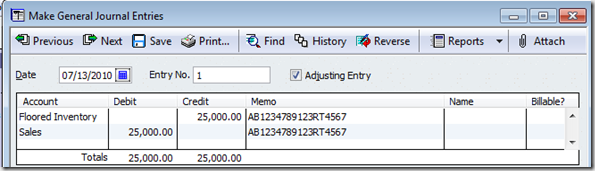 Paying the Floor Plan Financing Company
When the vehicle sells, you will make the payment to the Floor Plan Financing Company for the vehicle that was sold. This should be made using the Bill that is waiting to be paid, using Pay Bills for the Flooring Accounts Payable account and selecting the bill for this VIN.

This article was originally written by Michele Hand and was modified for our blog with her permission.
Michele Hand has been using QuickBooks since 1997. She currently teaches QuickBooks through a public school Adult Ed “Lifelong Learning” program and privately consults for a wide variety of business types. This has helped her to understand how to apply QB tools to a broad range of business needs and to develop great “workaround” concepts. Her class description best explains her point of view for using QuickBooks software: Combine bookkeeping with practical tasks to manage and report your business transactions and fine-tune your profitability.
Michele is available for private consultation – for pricing and availability, contact her at qbteachmt@yahoo.com
Fantastic article!
I have a question in reference to floor plan,
to set up a floor plan in quickbooks – I am trying to understand the correct je flow – moving from one software to quickbooks no persons able to help
OLD Software (my understanding so far)
created P.O. Received Cars
Dr- Floor Plan Cars
Cr- a/p accrued purchases
Dr Accrued purchases (receive car)
Cr N/P Cars
Pay floor plan invoice- ACCOUNTS PAYABLE
Dr N/P Cars
Cr ? ( What account would make sense)
QUICKBOOKS
FLOORED INVENTORY (ASSET CARS)
FLOORING DEBIT (NOTE PAYABLE CARS)
FLOORING AP A/P ACCRUED PURCHASES (just trying to idenitify)
You are a life saver! Now if I can just get my client to supply adequate information, so I can do the accounting! Thank you so much for being so thorough!
My Lord! Bless you Indeed!
I been looking for this kind of instruction to set up my clients books on the right way, the floor account for car dealership.
His old account had a set up like a Cash Flow account for re-investment I was unable to balance the books ,It was no way to square ,Suddenly I realize Flooring ,Flooring, flooring was a third party situation.
You are a Lifesaver Thanks again for share your knowledge’s.
your step by step instructions ,teach me what I need to do and make just a few small changes according to my clients need. Thanks again.
I do have an issue with this that maybe could be expained. When dealing with a floorplan expense I find that the amount floored is not the same as will be owed upon selling. The floorplan company will charge intrest and sometimes a fee to payoff. So in above example floored amount was $25,000. Upon sale the payoff to the floorplan company would be $25235.00 with fees and intrest
Hi, Todd: The main method shown here includes using a Bill to the Flooring Finance Company, posting the floored value of the asset (such as a Vehicle) to the Flooring Debt account. For additional charges such as Interest, you would create another bill to the same Vendor Name. On it, you post to your Interest expense account. On this new bill, be sure to put something in the Ref field so you can associate this interest and fees bill with the specific vehicle.
When the vehicle sells, you use Pay Bills as noted above.
You will see the two bills for this vendor name that have the related Ref info. One is the Asset and one is the expenses. Select them both to generate one payoff bill Payment Check.
Let me know if this doesn’t answer your question.
, if only I could find such aid the floorplan lender to set up QB…
I just started to provide floorplan services to a small used car dealer and have a hard time finding a similar article. First time business owner as well so QB is VERY new to me. Any direction you can give me? Thank you much in advance!
I meant to say “…if only I could find such an aid FOR the floorplan LENDER to set up QB…”
Thanks again.
Laurens V.,
As the provider, your QB file will show this as Customers who owe you; the accounting would be done using Estimates, Sales Orders, Invoices and/or Sales Receipts (depending on which QB program you are using and which steps you want to track and report for this loan process) and use Other Charge type of items, as these can be linked to Other Asset accounts and manage the data flow for Flooring services. The interest and finance fees would be your Service items and are income to you, of course.
Beyond this, setting up the accounting flow is something to discuss with your CPA, because your initial Flooring is going to be income but this income is not yet paid; it is offset by the fact that you are “carrying the paper.” The accounting data flow varies for these activities and would be something that needs to be set up specifically for your business.
Since we don’t have titles to the floored inventory, should these floored inventory be included in ending inventory when calculating COGS for federal taxes?
I understand this in a scenario when we buy from the auction and the vehicle is just put on the floorplan, but I have another scenerio. When we buy outside of the auction, like from a wholesaler or we have a trade-in and we floor the vehicle, the floorplan either gives us the money by cutting us a check or ACH’s the amount into our checking account. How would I handle this scenerio since there is also this extra transaction?
Can I start this process with a Purchase Order, or does it have to begin with Enter Bill?
I can’t think of a reason why you couldn’t start with a PO myself. You still need to get to a bill from the PO.
Thanks for the great write up.
Here is my issue, we are floor planning a new boat. The problem is that the total cost of the boat is spread among 5 vendors (boat company, trailer company, cover company, stereo company and paint company).
When I got through your steps, I start to add a bill for one company and since I only owe them a portion of the total value of the floor planned item, I get a negative balance and can never get this to zero.
Thank you so much for this article! It helped me so much as this is a very specialized area and honestly not many accountants could answer for me how to make the entries I needed and I have grown many a grey hair! Thanks again!