If you use the spelling feature in QuickBooks you will find that it is easy to add a misspelled word to the dictionary. That is, QuickBooks says that a word is not in the dictionary and you accidentally click Add instead of Replace. The misspelled word is in your dictionary, and QuickBooks doesn’t provide you with a way to delete the entry. How can you fix this?
You can delete these kinds of errors, as I’ll show you today, but please use these instructions with caution!
Find your Dictionary
Your QuickBooks dictionary is stored in a file named UserDictionary.tlx. Each Windows user has their own copy. Exit QuickBooks (don’t try this procedure if you have QuickBooks running on your computer) and do a search for this file. Note that you may find several copies if you have installed several different versions of QuickBooks over the years.
In Windows Vista the usual folder will be something like C:\Users\UserName\AppData\Local\QuickBooksxxxx.
- UserName will be your Windows user name.
- xxxx will be the year of QuickBooks that you are using (like “2009”).
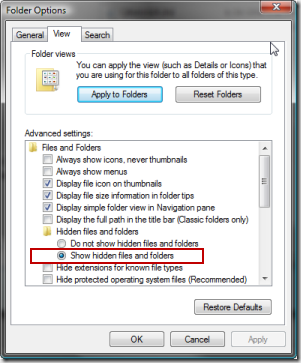
In some cases you may have a hard time finding this, as sometimes this folder is marked as a “hidden” folder. If this is the case, open Windows Explorer and change your folder preferences. In Windows Vista you would select Organize and then Folder and Search Options, and click on the View tab. Mark the option to Show hidden files and folders. Please use caution with this – these folders are usually hidden to keep people from making changes where they shouldn’t.
 Editing the Dictionary
Before you try making any changes to the dictionary file, make a backup copy in a safe place!
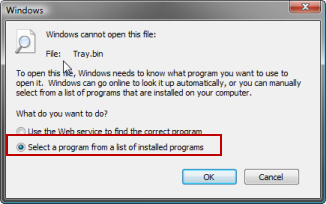
Edit the dictionary file with a simple text editor – one that won’t try to insert odd characters into the file (don’t use Microsoft Word, for example). Windows Notepad is a good choice. In Vista, right click on the file and select Open, and you will usually be shown a dialog that lets you choose the editor. Choose the option to select a program:
 Select Notepad from the list.
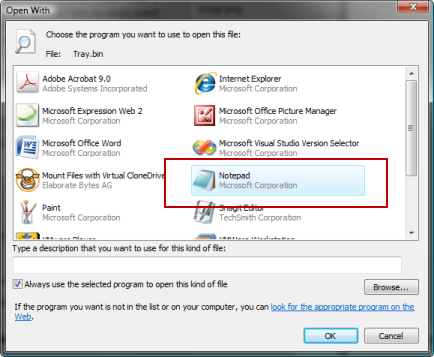 Notepad will open the dictionary. Find the misspelled word and delete the entire line for that word. Do not make any changes!
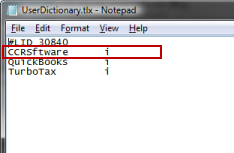 Save the file, and start QuickBooks again. Problem solved!
Spelling:UserDisctionary.tlx
HAH! Thanks, Juan, I have corrected the misspelled name of the file in the article – funny that I misspelled that in an article about correcting spelling mistakes!
Updated location path for Windows 7:
C:\Users\UserName\AppData\Local\Intuit\QuickBooksXXXX
Thank you – worked like a charm!
Thank you! Worked perfectly.
Need help! I did a search for UserDictionary.tlx, and got lots of results. I wasn’t sure which ones were valid, cause I had made quite a few test companies, and had deleted those a while ago, so I thought these UserDictionary.tlx file were probably leftovers from then. So I did a mass ‘send to recycle bin’of the UserDictionary.tlx files, to clean up, thinking I would restore the file I wanted to keep. Well my luck, the Recycle bin say it is corrupted, and just shows a blank page!
Now if I search I get no results. I read that if I ran spellchecker, and added a word, QB’s would make a new file, so tried that, and it seems to have added the word, but I can still not find a UserDictionary.tlx file if I search. So not sure if I should just ignore and move on, or if something is wrong that I can’t see??
Hard to answer without having hands on the computer. Sometimes it is just easier to move on…
The file could be in a “hidden” folder in your system.