You have your sales tax items and rates all set up, you have the sales tax rate selected for each customer, you can generate your reports, you are all set! HOWEVER – what do you do if a sales tax rate changes in the middle of the year? Today I’ll talk about some ways to handle this situation. I am going to assume you understand how to set up sales tax in QuickBooks (see my article on how to set up sales tax in QuickBooks).
A Sample Situation
To illustrate the situation I’m going to create a very simple case. I’m in Davis, California, and prior to April 1st I have two sales tax rates to worry about. There is a 7.25% state rate, and a 0.5% city rate. I’ve set up two sales tax item records for each tax, and a sales tax group record for the combination. In my local customer records I specify that they are taxed using the combined rate.
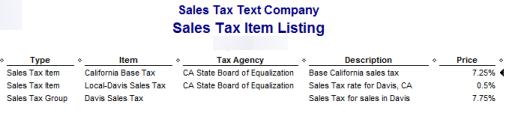
I created an invoice in March for $1000, and the tax that is calculated is $77.50.
Then on April 1st the state tax rate goes up to 8.25%, and I make a sale in April. The tax that is calculated is $87.50. How do I handle the sales tax rates?
Change the Rate
The simplest approach to a changing sales tax rate is to just edit the sales tax item and change the rate. However, you should not do this. The QuickBooks Help file states that you should not change a sales tax rate for an existing sales tax item, that this can impact reports and existing transactions.
From what I see this is only partially true. I can’t see any effects on existing transactions. If I have an invoice with the old rate, and then change the rate of the sales tax item in the item list, the existing invoice still shows the original rate. That is what I would expect – the rate itself is stored in the invoice, not just the reference to the sales tax item (note that I did not exhaustively test this situation). I still don’t recommend changing the rate this way, though, because of the way this impacts the Sales Tax Liability report.
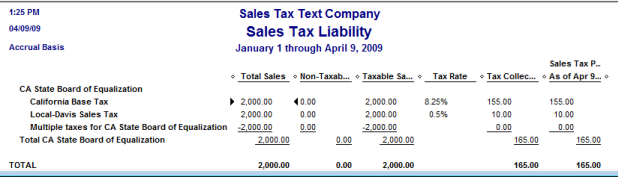
The report lists the sales tax rate, and so it will only show the current value of the rate. If you look at this report, it looks like you under-collected the California tax – 8.25% of $2000 should be $165, not the $155 shown here. For your tax reporting you will need to show the amount that was taxed at the old rate, and the amount that was taxed at the new rate. So, although the invoices are correct, your sales tax liability report is incomplete.
Update the Sales Tax Group
In my example I created a sales tax group item for the actual tax that I’m going to charge my customers. In California I need to do this, because I have to show the separate amount collected statewide and per individual tax district.
Instead of changing the tax rate for the California Base Tax, I will add a new California Base Tax sales tax item for after April 1st, with the new rate. I’ll change the name of the original rate to note that it is for the first quarter, and the new rate item will have a name that differentiates it from the other. Then I will edit the sales tax group item to use the new rate instead of the old rate.

As you can see, now the report properly separates the sales by the different rates for different times of the year.
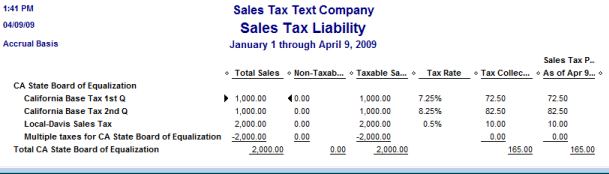
This is a simple change to make. Another big benefit – because each of my customers were assigned a sales tax group item (rather than a sales tax item) I can make the change to the rate, but I don’t have to go into each customer record and change them to use a different rate. This keeps the amount of work to a minimum and makes it less likely that I’ll have an error due to overlooking a customer.
If You Aren’t Using Groups
In some cases you may not be using sales tax group items. Perhaps you have a locale where you don’t have multiple combined sales tax rates. Perhaps you didn’t set up your sales tax system to use groups in the first place, and only have one sales tax item with the final rate.
You still want to make a new sales tax rate item rather than changing the existing item’s rate, so that you get the proper reporting as shown above. However, now you have a situation where you have to change the default sales tax rate item in every customer record, which can be time consuming.
However, there is a trick that can make this a simple chore. My thanks to Intuit Community member “Onceagain”, who pointed this out to me in a forum discussion.
You will create your new sales tax item with the new rate. Then, in the item list, make the OLD rate inactive. Note that even though it is inactive, it will still show in the sales tax liability report if there are values accrued to this item.
Now, when you invoice a customer that used the old rate, a warning will pop up:

Click on “use it once”, but then in the invoice switch the tax item to the correct, new item or group. For most people, QuickBooks will open a window telling you that you changed the tax item and asking if you want to update the customer record.
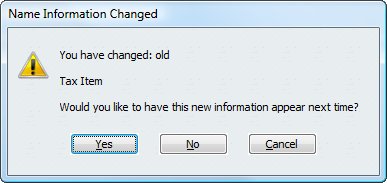
What this means is that by making the sales tax item inactive you will be warned the next time that you invoice a customer using that item, and you can update the customer record at that time. This saves you from having to go back through all of the customers to change the rate.
Note that you won’t get the “name information changed” warning if you have turned off this preference (under General preferences, in the Company Preferences tab). In this case, when you are asked if you want to use the inactive rate, you have to change the rate in the customer record yourself.
Wow! I just signed up for your newsletter, and received the changing tax in mid year tip. I had forgotten to change my California tax rate in QB and with PayPal. How timely and helpful my first newsletter is! Thanks.
Great info. I changed my tax rate on April 1st by editing the sales tax item,like you suggest not to. I printed my sales tax report and noticed the rate was changed even though all the figures were correct. Soooooo, how do I go back now that we’re two weeks into the new tax rate???? We don’t handle more than about 4 invoices per day, so I could go in and edit all the April invoices.
I always look forward to learning new QB tips in your newsletter. Thanks.
Florence, Donna, thank you for your compliments. My apologies for not getting this published prior to April 1st when the CA taxes changed.
Donna: Here is what I would do. First, MAKE A BACKUP copy of the file. Then make the appropriate changes to your sales tax rates as I recommended (I don’t know how your sales tax is set up so I can’t give specifics). Change the rate back to what it was before in the existing item, set up the new items as is appropriate. This will handle all NEW invoices that you make from this point. However, the EXISTING invoices in April aren’t changed. You have to go back to each of them and change them to use the appropriate tax. Just looking at the invoice and saving it won’t work, as the tax rate is stored in the invoice. You have to actually change the tax item that is selected (if it already has the right one, but at the old rate, you have to change it twice, once to a different item and them back to the correct item). Then save the invoice. This should NOT change the balane of the invoice, since the tax rates are the same, you are just changing how the items are used. Hope that is clear…
I’m confused on the sales tax issue – I have a new business and I am collecting MI sales tax. Everything is set up. However, many of my customers are out of state. Isn’t there a way to tell QB to charge this tax ONLY to customers in Michigan – and then use the default no tax, non taxable tabs for new customers only?
Thank you.
Sallie, you pretty much have to decide which tax to use for each customer as you add them, either a Michigan tax or an out of state (0%) tax. QB doesn’t have a way of knowing which to apply to the new customer automatically. You can use a third party add-on to handle that if you wish (I’ll be reviewing that in a future article).
If you have only one tax district for Michigan you are lucky, in states like California we have to pay attention to what county, what city the customer is in.
Charlie, am I glad I came across you! Your answer was the only correct one I came across in hours of searching the forums. I’m not using tax groups and making the old tax rate inactive was the “bingo” answer. Thanks for being willing to share your knowledge. You’re a lifesaver.
I am new to QuickBooks and need to charge sales tax in several states since we have employees in those states(nexus).
Is there a file available that I can import the tax rates and tax groups. It would be far easier for me to delete the counties I don’t need rather than research and manually enter the ones I do need.
Thanks,
Forrest
Forrest, I don’t know of anyone who has a list of those kinds of tax items in a prepared list – and it would be complicated to keep them set up. There are compatible products that handle the sales tax in a different way – such as the product from Avalara. It is worth looking into if you do a high volume of sales in different locations.
In my case the prior users set up the single Sale tax item instead of a group. So I created a new Sales tax item and left it inactive until the day it goes into effect then I will make it active and the old item inactive.
What I would like to do to change the customer base to point to the new sales tax item, is export the customer list to Excel and do a global change in the appropriate field/column from “NY SALES TAX” to “NY SALES TAX 8.875%”.
After saving the excel file and closing it I would like to import this file into QBooks (single user mode). What is the exact procedure for importing the file back into QBooks?
Thanks,
John
John, in summary: In the customer center, export the customer list to Excel. In the Excel spreadsheet find the “sales tax item” field and change it to be the value of the new sales tax item that you already have in your list. Then use the Excel Import, the advanced version. Set up a mapping (all similar to what I explain in the article in “importing inventory from Excel” https://qbblog.ccrsoftware.info/2008/04/importing-inventory-with-excel/) and map out the customer name and the sales tax item. The import should change the sales tax item to be the new value.
Can you tell me how to credit sales tax items if there was an error that was later reimbursed by the state? I can easily credit Sales Tax Payable, but what about one step further on the “sales tax item” with the various sales tax rates. I cannot seem to find in any ledgers or bill options where I can credit the affected sales tax items.
Christy, you don’t want to make journal entries directly to the Sales Tax Payable account, as that will throw your reports off. Instead, look at the “Adjust Sales Tax Due” option under “Vendors” and then “Sales Tax”
You have a great resource/blog that I stumbled into as I’m getting some QB things updated on my side. I’m also in California and I deliver things to different counties so am faced with setting up groups/separate items.
This article talks about changing rates mid-year. It’s said to NOT go and change an existing rate, which makes sense (I guess, though i see how your testing is also true.) But, what about when the rate changes at the year (not mid-year), if there is such a thing?. Do you have to simply keep adding the rates (as items) and then continuously add them to the group?
I still have my sales tax rate at the rate it was at when i first setup my company (7.75%) Our new base rate is 8.25%. Should i go back and change my base tax item to 8.25 (possibly affecting previous report?), or make an “adjustment” item of 0.75 to then make a “base” group?
Possibly a better way to ask – is there ever a time when you do want to go and simply change your base rate?
Thanks,
Blake
I’ve just read some more of your articles, and possibly i missed another option, which makes more sense if i’m understanding all of this.
Create an entirely new “base rate” tax item. Then I would “Deactivate” the old tax rate item? (Not to forget to adjust the “Common Sales Tax Item” per your other article: https://qbblog.ccrsoftware.info/2010/05/faqquickbooks-inactive-sales-tax-item-still-used/ )
Then i could make my groupings and other items based on the different jurisdictions i have to deal with, using the new/active base rate, right?
Original question still applies – would there be any time we DO want to go and change a tax item rate (assuming it’s been assigned/used on invoices, etc.)
Blake, I can’t comment on your specific situation without knowing more about what you are doing. In general, you can change your rates directly at the end of the year if you are reporting your sales tax on a yearly basis. Any given sales tax report should cover just the year, AND you should run your report right as the year ends.
No harm in using the same method for changing rates at mid year, though.
Hello I’m looking for some help with my sales tax updating for my Quickbooks file. The issue I’m running into is that when I “auto update” my sales tax it drops a whole new set of sales tax items into my items list. Well as you noted above this makes my sales tax report unnecessarily long. Is there a way for Quickbooks to just recognize and update my current item list? Thank you so much for your help!
Kristy – I’m not sure what you are referring to when you say you “auto update”…
Can you help me on this issue? My sales tax is cash basis. My invoice has a retention line. Quickbooks is immediately computing tax on the retention as if it were a payment on the invoice. Thanks.
Arleen, taht is a bit tough to explain in comments like this, you probably shouldtalktoa ProAdvisor.If it is just an issue of not wanting tax calculated on a particular line, set that line to “non” for tax…
[…] If you need to see a visual of all of this, check out this post at Practical QuickBooks. […]
I agree your solution works and it’s a good one. HOWEVER, it’s perfectly acceptable to edit the existing rate for your existing item. IT DOES NOT CHANGE ANY OLD DATA OR TRANSACTION. I ran an experiment, which you can easily replicate. First I backed up Quickbooks. I ran the Sales Tax Liability Report and the Balance Sheet as of today and wrote down the amount of the sales tax liability. In my case they were the same amount because we report sales tax on accrual basis in California, and my balance sheet was accrual basis as well.
I then CHANGED the %rate on my existing sales tax item from 9.5% to 8.5%. I ran the same reports AGAIN and noted that neither report changed one bit! All my old transactions were still at 9.5%.
Then, I entered a new sale using a Sales Receipt (I also tried an invoice). It correctly picked up the new sales tax receipt of 8.5%. When I hit my previous button to look at the prior sales tax receipt, I could see that the older receipt still correctly shows 9.5%. Bottom line: Changing the rate on the existing item does NOTHING to old transactions or reports. And adjusting the item is easier than setting up a new item because you do not need to change all the default sales tax items for each customer.
Greg, as I mentioned, the QuickBooks help file says that transactions are affected, but I didn’t see any effects myself – with transactions.
And, yes, the TOTAL on the reports will show accurately, but if you are looking at the sales tax liability report and double checking figures, the information is displayed in a way that is very misleading. I’ve had people who changed rates and then thought that there were calculation problems.
I still stand by my recommendations – but you can choose the approach that works best for you.
I’m using an older Quickbooks, 2006 (Pro 6.0) and I just go to Lists, then Items, then at the bottom, Sales Tax. Highlight it, hit ‘edit’, and change the tax rate. All items will now show the tax rate (which are a lot for my company).
My out of towners, but in the same state, have a lower rate I apply, and a separate ‘name’ and tax amount. I knew I had to change this a few years back, and was looking to see if I didn’t have to re-figure it out again, but I just did.
Mine was easy once I remembered how to change it, don’t know if the newer versions can do this. Too bad if not.
Michael, yes, you can do that (as I point out in the article), BUT you will still have the effect on the sales tax liability report that I point out, which is misleading. And can cause people to file incorrect tax reports in some situations, if they aren’t careful.
I wish I had seen this a month ago! I did it the other way, and now I’m looking at a worthless sales tax liability report.
So now I need set up a new group, and then correct the invoices I’ve entered in the last month. Is there a report that will just show all the invoices dated in the last month? All the reports I’ve looked at are not that simple.
Thanks for the great tip!
JoAnne
JoAnne, you could create a Custom Transaction Detail Report and set the filter to show only invoices, for the date range that you want. A fairly easy report to work with.
Never mind – I’ve figured it out. I’m just going through each invoice on the “create invoice” screen.
🙂
JoAnne
I’m so frustrated! We do business is the majoritiy of the counties in our state. When I set up quickbooks it took hours to create all the sales tax locations (all cities, counties plus the state) and then go through and group them accordingly. Now that our state sales tax has gone up I have to go through each individual sales tax group (I have over 100) to change the state tax from the now inactive to the new active rate? What a HUGE waste of my time. I’m quickly learning that although there are some great things about Quickbooks, the negatives are starting to outweigh the positives.