QuickBooks has a “closed” database – they control access to the data very tightly. While you have some limited ability to import list data (items, customers), it is generally difficult to import transaction data (invoices, checks). Today I’m reviewing an excellent tool that you can use to import transactions into QuickBooks (and lists as well), the Transaction Pro Importer from Transaction Pro.
Last year I reviewed the Transaction Pro Exporter tool from Transaction Pro, which is used to extract data from QuickBooks. The Importer tool provides the same excellent quality. This tool is available for $199.95, and can work with information from Excel, Access, various SQL databases (using ODBC), and several text formats.
Transactions and Lists
The Importer supports the following QuickBooks transactions:
- Bills
- Bill Payments
- Checks (except payroll checks)
- Credit Card Charges
- Credit Card Credits
- Credit Memos
- Deposits
- Estimates
- Inventory Adjustments
- Invoices
- Item Receipts
- Journal Entries
- Purchase Orders
- Receive Payments
- Sales Orders
- Sales Receipts
- Statement Charges
- Time Tracking
- Vendor Credits
In addition, the Importer supports the following QuickBooks lists:
- Accounts
- Customers
- Employees
- Items
- Other Names
- Vendors
Installing
Installing is simple, as I expect from Transaction Pro. The file is provided as a ZIP file. Unzip it, run the installer, open your QuickBooks file, and “authorize” the application in QuickBooks. This is a very typical third-party product installation. Please note that the first time you run this you must be logged in to your QuickBooks company file as the “Admin” user or you won’t be able to access the file.
Also note that if you use the trial version it will only work with one of the QuickBooks sample company files. You cannot use this on your own file in a trial situation.
Simple to Use?
Actually, yes, I found it simple to use considering the complexity of the task. Please note that I’m the type of person that just crashes on in and runs the program, I didn’t read any of the documentation or view any tutorials before I started using it.
The program isn’t drop dead simple to use, BUT that is because importing information into QuickBooks from a wide variety of database formats just can’t be done simply. The program is very flexible and has a huge range of options. The options can seem daunting, but if you focus on the task you are trying to accomplish the process is very straight forward.
Please note that with any import method you use, I strongly recommend that you make a backup copy of your company file before importing. Imports cannot be “undone” other than by restoring a backup, and due to the complexity you can’t always be sure ahead of time that you will get the exact results you are looking for.
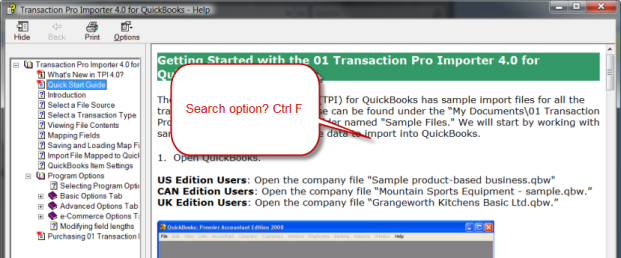
There is a simple help file. I would have liked this to be indexed, but you can use ctrl-F to do a search.
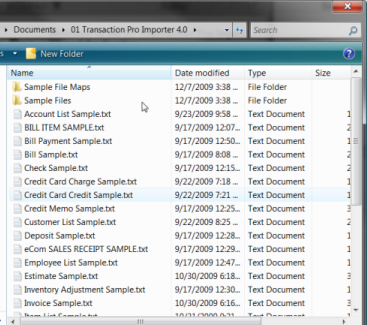
 There are a number of sample files in various formats that you can use to see how you might format your data, and to use as a test. I didn’t notice this information at first – they are installed into your Documents folder.
Importing a File
In my test I wanted to import a series of checks from an Excel file. The program works in a wizard mode that leads you step by step through the process. I’m going to show you most of the steps – this article is not a tutorial, but an overview.
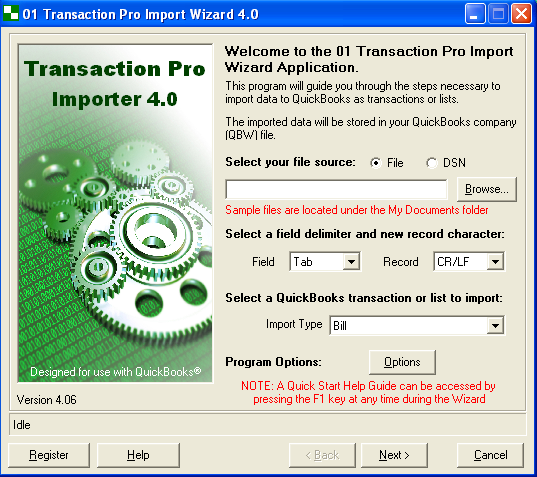
In the initial screen you select some general characteristics of the import.
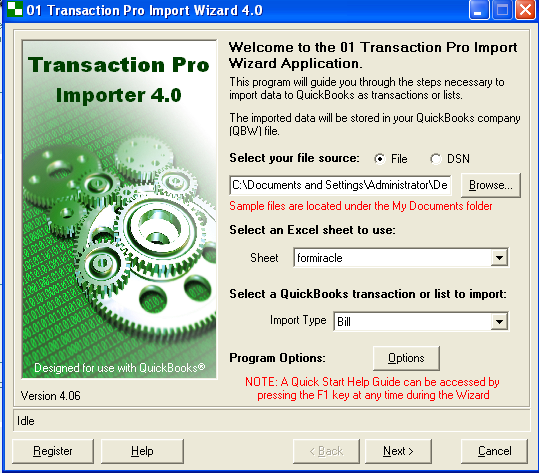
Once I selected the import source (an Excel file in this case), the wizard automatically adjusts the screen to show options that relate to the file type.
There are many options available (click the options button). Again, this may seem daunting, but you can focus on just the aspects that fit your situation. Options are GOOD, because every import file and situation is different and you need the flexibility to handle many different things.

Your data is brought in to a spreadsheet-like grid. You have the ability to actually edit the data in this grid before it is imported, which is a feature I found very useful.
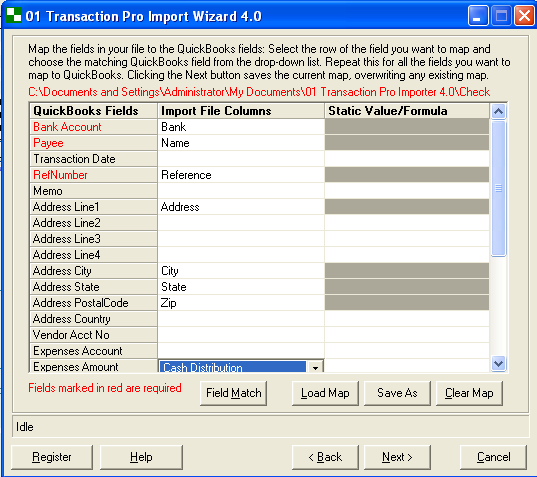
 As with the Excel list import in QuickBooks you have to create a “map” to associate the fields in your database with the fields in QuickBooks. If you have used any of the “advanced Excel” list imports in QuickBooks you are familiar with this concept.
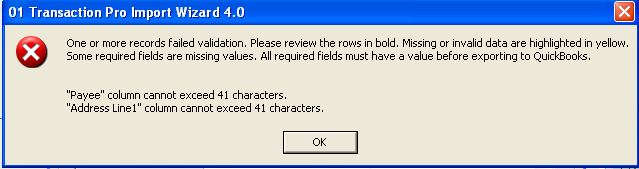
In my first trial import there were some problems with the data. The wizard notified me of the errors.
The data grid then shows you all of your records, and the information that created the error is highlighted (please note that I’m blurring the data, as it is real client data).
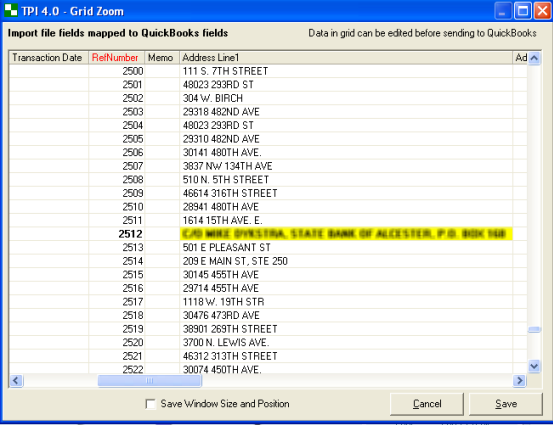 You can edit the information in the grid directly (it is not saved back to the original source).
I would have seen fewer errors if I had spent more time looking at the options screen. Several of my records had fields that were too long, and there was an option to have the program automatically truncate those fields (found that after I was done).
Once your data is verified, the import proceeds. This is a slow process, but that is due to the arcane and slow features that QuickBooks provides to third party developers and is not the fault of Transaction Pro.
If there are errors in the import, you will be notified, and a log will display the errors.
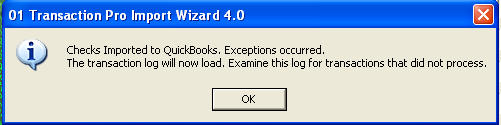

Once I resolved all of the missing fields, fields that were too long, and got the mapping worked out, the import brought in over 3000 checks into my client’s file without any problems at all. This was a huge timesaver for us!
Room for Improvement?
As I said before, importing is inherently a complicated task, and the program has a very large number of options. There were a few places where I was puzzled by the messages that were presented, and some places where the program can be improved. None of these issues are show stoppers – as a programmer myself I always find things that I would like to change.
When there were import errors, you were notified and given a list of ALL of your transactions, with the errors highlighted. You have to search through the list to find the records that have errors.
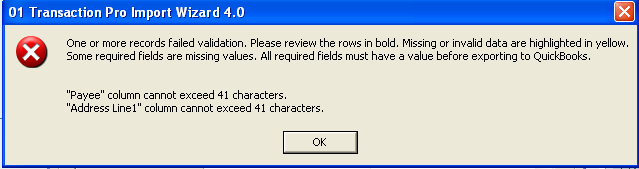
It would be helpful to get a list of just the bad records, or at least a count of the number of bad records. If you have a very large file to import, locating the errors can be a bit difficult. BUT, I will note that this program is a great improvement over the QuickBooks imports which make errors very difficult to find.
I would have liked more detail in the help file. There were times when I had to fumble about to determine what fields I needed, and how to use some features. Their web site does have a good support forum and tutorial videos, which helps.
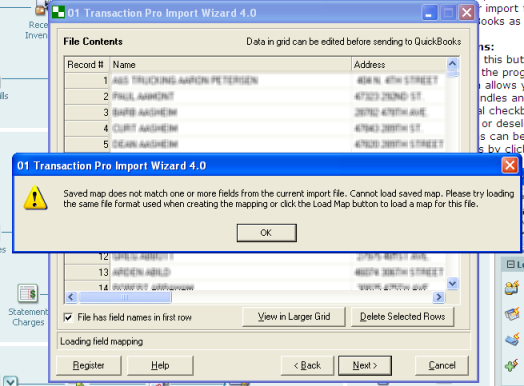
The first time I set up an import, after I viewed the data, I got a warning about a saved map not matching. Curious, I hadn’t specified a map yet. I would have expected the program to just take me to the map creation step. Which it did, after displaying this message.
Conclusion
Again, when you are working with data that is coming from a source that organizes things differently than QuickBooks, the import task can be very complicated. This tool certainly has room for improvement, but it worked very reliably. The program didn’t crash, it didn’t damage my QuickBooks company file (IIF imports, an older Intuit method, potentially can damage your file), and the results were exactly what I was looking for. If you need a way to import data into QuickBooks, the Transaction Pro Importer for QuickBooks is an excellent choice.
In the interest of full disclosure, after I had started my evaluation of this product, I was provided with a license at no charge, as they are aware of my blog and my review articles. This did not influence my review of the product, and I do not receive any income based on this review (unless a Google ad pops up by chance).
Other Articles on Importing
I’ve written a number of other articles on importing data into QuickBooks:
- Importing Overview
- Importing Inventory with Excel
- Review of the Data Transfer Utility (moving data between QuickBooks companies)
- QuickBooks 2010 Rapid Data Entry
The help file gives an overview of how to find the sample files and the basics of using the product. For more detailed help users should visit our support forum where they can see FAQ’s and post their own specific import challenges. It is company monitored on a daily basis and has over 1000 members.
Users can find the full data dictionary on our support forum under the FAQ’s section here: http://baystateconsulting.com/forum/forum_posts.asp?TID=338
For advanced users and programmers there is a full command line interface included in the product where you can set the file name, transaction type, map file and much more. You can even let the Transaction Pro Importer run automatically or in the system tray. Visit this link for more details: http://bscdownload.com/downloads/Command_Line_Parameters.htm
Thanks, John. As people can see, the product has a wealth of options that I didn’t get into (since this is just a quick overview). This all makes it a more valuable and useful product.
I will also mention that you can get updates and features on pointers about using the product by following John’s “TransactionPro” Twitter account.
Did anyone try Webgility eCC
[…] This post was mentioned on Twitter by CCRussell and Ramon Spearman, Les Murphy. Les Murphy said: #quickbooks Importing QuickBooks Transactions with Transaction Pro Importer … http://ow.ly/16lfEH […]
Hi Charlie,
I am told that you also need the exporter tool. I have thought of using this but with being so busy was worried I would open a huge can of worms.
Jo King
Jo, I’m not sure what you are saying (or asking). If you want to import things from the outside world TO QuickBooks, use the Importer. If you want to send things FROM QuickBooks to the outside world, use the Exporter. They are independent. If you want to transfer things FROM QuickBooks TO another QuickBooks company file, you can use both the Exporter and the Importer, but I would probably use Karl Irvin’s Data Transfer Utility for that. It all depends on what you want to do and what you are working with…
I bought this and had to get a refund. The program is great if you have users with a lot of access to full or modify permissions, but if you set the Chart of Accounts to view only, the import will not work. When I spoke with their support, they pretty much stated that is the case and I couldn’t do much about it.
Importing usually has to be done by someone with high permissions because of the way that QuickBooks works. Sometimes it doesn’t make sense as to what permissions are needed, but their interface (Intuit’s) is a bit obtuse. In any case, when doing an import (with ANY method or tool) you should always be making a backup first, and that requires a higher level permission in any case.
I’d like to know How can I Turn off Validate before importing data to QuickBooks using Transaction Pro importes 4.0. Because this proccess takes a lot time qhen I need to import an excel page with more than 3.000 lines.
If you can help me will be great.
Thanks.
Sandra, I’m not sure how myself. There is a very active support forum for the Baystate Consulting products at their web site. I’m sure you can find your info there.
is there a tool to import inventory receipts into quickbooks POS using excel? i have QB POS 9 and this tool is much needed.
thanks
Olamide: I don’t work with the POS product so I can’t say. You could contact the Baystate Consulting folks and ask them…
Have you tested the Invoice import? If so, will it update inventory values (i.e. transfer from B/S to P&L Cost of Goods)
I haven’t done that specific task, but as I understand how it would work, it should. Note that you can ask about this in the support forum that Baystate Consulting provides.
i’d like to ask the maximum limit that i can use in setting up the item list in quickbooks, is it 14,000? how about the customer and vendor lists?thanks.
Lauren, that is a bit off topic here. However, the answer depends on what version and year of QuickBooks you have. The limit to the item list in Pro and Premier is 14,500. In current releases of Enterprise there is no limit, technically, but you are better off if you stay below 100,000
I’d just like to give a shout-out to Baystate Consulting, to Karen & John Magno, and to the Transaction Pro Importer tool. I am an Intuit Solution Provider and I have used this tool rather extensively for my clients. I find it to be versatile, reliable, and ECONOMICAL.
Thanks Lyn – so glad you like our product 🙂
Check out our command line parameters document to do all sorts of cool automation with TPI. Great for advanced users like yourself: http://bscdownload.com/downloads/Command_Line_Parameters.htm
Any Amazon.com merchant sellers using this software to import their settlement reports into Quickbooks? I tested the trial version and like it, however it seems like there will be a fair amount of data manipulation required prior to importing.
Transaction Pro Importer 4.0 is a wonderful tool! I have setup several of my clients to use this to import web store files and for migrating from one accounting system to QuickBooks Enterprise. If anyone needs assistance with data manipulation prior to using Transaction Pro Importer we can write custom macros that will take your raw data file (.txt, .csv, .xls etc) and set it up to be imported into QuickBooks.
HI Charlie
I had heard that there was one part of this program where I could import a file so that it filled the respective item pricing per item into the price level list so that I would not have to do that by adding each item’s price individually since we do not use a consistent % off basis? Do you have any idea if this is so?
Doug, I’m not sure, as I don’t use it to do that. You can check with them, they have a very active user and support forum. You can also contact my company at sales@ccrsoftware.com, as we have some price level list update features in one of our products.
Does anyone know if Transaction Pro Importer 4.0 can import tracking numbers (FedEx/UPS) and shipping charges to sales orders if each record to be imported has the SO# in it?
If it can’t, does anyone know of an app or customized QB programmer that could write an app, that uses the SDK verses the IIF method to handle such a task?
QuickBooks sales orders don’t have a field for a tracking number, specifically. You could import a transaction with a value like that in a “custom field”.
I don’t know if the program can update fields in EXISTING transactions or not – I’ll see if I can find out.
You can contact me directly if you want an SDK based app, I develop custom SDK based software.
TPI 4.0 now has a replace transaction feature where if a matching transaction is found then it is deleted and replaced with the new one.
Hello,
I purchased Transaction Importer and just getting started. I’ve run across the error below and not quite sure what it means. I am logged in as the Administrator.
“transaction pro cannot access chart of accounts exit transaction pro and log into the QBs datafile with more permissions and restart this utility.”
Any idea how to correct this error? Please help!
I’m working on importing an Investran file to a new QB’s file. I have exported a list of all the J/E’s (roughly 5000 lines) and a detailed trial balance from Investran. I dont believe it’s possible to import an entire TB, but I see that it does import J/E’s. Do you think importing the list of J/E’s is the only way to transfer all the data?
Nick, Baystate Consulting has a great support forum, I would recommend asking there. They respond very quickly.
I would guess that the error has to do either with you being logged in to QB as a user that doesn’t have full permissions, or that you didn’t check the box that says to allow the program to have access to sensitive data when you authorized access to QB. I’d guess the first.
As for the other, I don’t know what an “Investran” file is, so I can’t help much there.
Thanks for your quick response! Any idea how to go back to the authorization screen to change the access level?
Nick, again, try the Baystate Consulting site for help.
You might run QuickBooks as the admin user, select “Edit” then “Preferences” and select your “integrated applications” preference. Click on the product and then “remove”. Close the windows, then start the Baystate product (with QuickBooks still open). It should ask you for permissions then. But that might not be the right way to do it for their product, that would just be the normal way for most add-ons.
Hi Charlie,
So I’ve read and searched for different options on how to sync two QB files running Pro 2012. Let me first give you my situation:
Running QB 2012 at Home, and on a laptop I take everywhere (2 user license).
I’ve tried using clouds from different vendors, no good.
remotely accessing the QB from home is not an option as the laptop doesnt always have internet connection thus the cloud wont always work.
I like the idea of exporting from laptop to home computer…
but would also like the laptop to have the most recent database.
So my question is…. what program would best fit my needs…
most exporting would be sales and invoice… (no credit cards yet)
If it is just you, and you are moving between two computers, I would just make a backup and bring it along. That is the simplest and cheapest way.
If I’m trying to sync transactions between two copies that are being updated in parallel, I would look at the Data Transfer Utility by Karl Irvin, which is set up to do this kind of thing. See my review at https://qbblog.ccrsoftware.info/2008/05/review-data-transfer-utility/
It does depend on what kind of work you are doing, how many users there are.