In a prior article I talked about the cost and avg cost fields in the item list. In this article I’ll talk about a related value, the Total Bill of Materials Cost which you will see listed at the end of a QuickBooks bill of material.
Let’s take a look at an inventory assembly sample item. The WHAS wheel assembly has two components, a screw (two of them) and a roller. Note that there are three costs shown in this window.
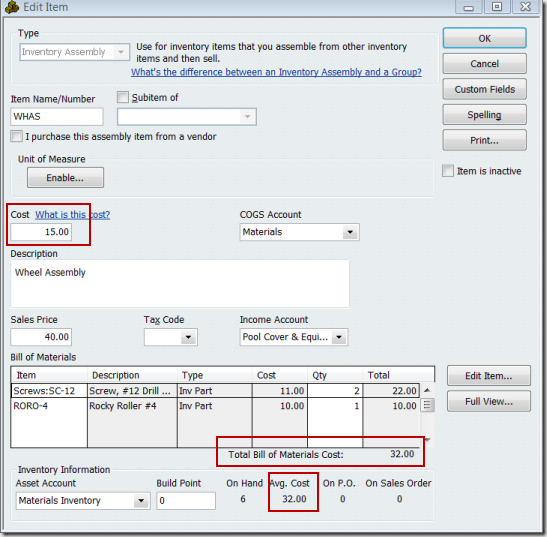
The Cost field (15.00) has no real bearing on valuation of this item. This figure can be edited directly. QuickBooks will not automatically update this cost to reflect either the Total Bill of Materials Cost or the Avg Cost. As I discussed in my earlier article on costing, the cost value of purchased parts is usually, but not always, the “last purchased cost” of an item.
The Avg Cost field (32.00) is the cost that QuickBooks uses to calculate the value of this item. You can only edit it directly when you add a new item – after that it is updated by inventory adjustments, receipts and builds. If you multiply the on hand value by avg cost, you get the inventory value for this assembly (assuming you don’t have a negative on hand quantity).
The Total Bill of Materials Cost field (32.00) is not directly tied to the cost or avg cost values. This is the sum of the cost values of the components in the BOM. In our starting example it matches the avg cost, but you will see that they are not connected later in this discussion.
What is the Cost of a Build?
Let’s take a look at the two component items.
The SC-12 screw has a cost of 11.00, but the avg cost is 8.86076.
 The RORO-4 roller has a cost of 10.00 and an avg cost of 19.44444.
 When we start, we have 6 WHAS assemblies at an average cost of 32.00, for a total inventory valuation of 192.00. We will build 4 of WHAS to bring us up to a total of 10. What will we see for the cost, avg cost and total bill of material cost for WHAS when the transaction is done?
- We start with 6 @ 32.00, for a valuation of 192.00
- For each WHAS that is built, we use 2 screws @8.86076 (the avg cost), for $17.72152
- For each WHAS that is built, we use 1 roller @19.44444.
- The cost at this time for one WHAS is 37.16596
- We built four WHAS for a total valuation of 148.66384
- Adding four WHAS with a total cost of 148.66384 to the value of 6 WHAS that were valued at 192.00 gives us a total inventory valuation of 10 WHAS for a value of 340.66384
- Dividing that total cost by the total on hand (10), we should get an avg cost for WHAS of 34.06638
Let’s take a look at the WHAS information:
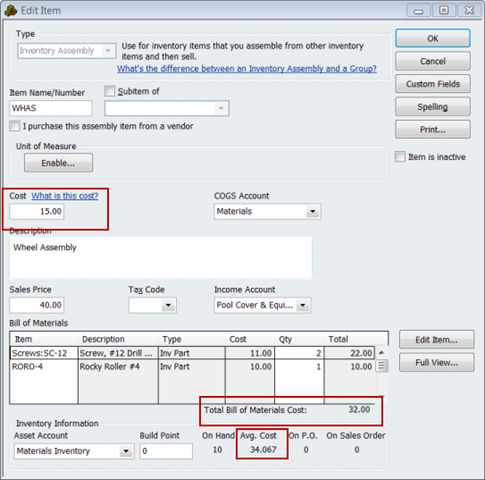 As you can see, the avg cost comes out to be what I predicted (although QuickBooks did some rounding at some point in the process).
Note that the cost and total bill of material cost have not changed.
This demonstrates that the avg cost of an assembly item is adjusted by the avg cost of the component parts when you issue a build transaction. This is what I would expect, and it shows that QuickBooks is properly maintaining the value of your inventory. The cost of the component parts is being rolled into the cost of the assembly.
Management Information is Misleading
The problem that I have with this is that from a management (not accounting) standpoint, the figures that are shown here are misleading. As my costs fluctuate, the cost value does not change. It only changes if I manually update it myself. If you have a report that shows the cost of this assembly, you may have an incorrect understanding of the cost of your assembly.
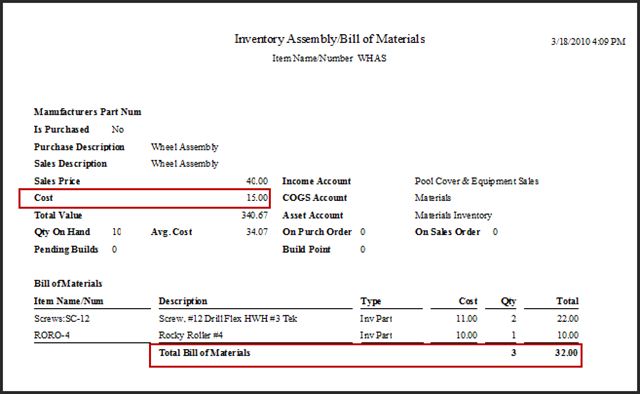 What is worse, the change item prices function in QuickBooks will let you use the cost of the assembly item, but not the avg cost, so price updates will be based on information that is often incorrect and out of date.
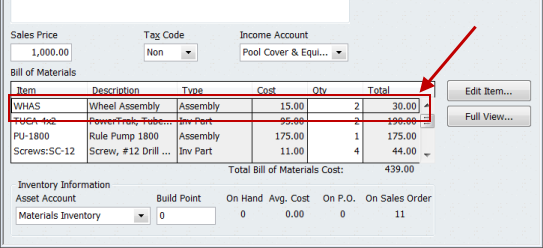
 To take this further, if the WHAS inventory assembly is used as a sub-assembly in a higher level assembly, the total bill of material cost value in that higher level assembly will reflect the cost of the subassembly, which doesn’t reflect any useful value if you are not diligent.
Why Is This Important?
Most companies will want to base their selling price on the cost of manufacturing their item. It is important that you have accurate information to make these decisions. In my experience it is common to want to update prices based on the current cost of acquisition. That is, I want the BOM cost to reflect the last purchase cost of the components, not necessarily the average cost. If you are updating the cost field when you purchase your parts then you have this information in the database for components.
If you have a simple one-level item structure you have to look at the total bill of materials cost as the basis of your decision. This value is hard to find in QuickBooks – it doesn’t show in reports other than the individual Bill of Material printout, or in the Edit Item screen.
If you have a more complicated product structure, using sub assemblies, getting an accurate cost of the assemblies is much more complicated. The cost shown for the subassembly might not have any relation to the cost of the components.
What Can You Do?
Obviously, if you are going to use the QuickBooks price updating tools, you want to be able to set prices based on accurate information. In QuickBooks by itself you need to periodically review the total bill of material cost of each assembly and then retype that in the cost field. Again, this value is only found in that one report or in the edit item screen for the assembly. There isn’t a simple report that lists the value for you.
This is complicated if you have multiple level product structures – in that case you need to make sure you update the lowest level assembly first, and work your way back up the product structure.
I do have an alternative. My company produces a low cost QuickBooks add-on product called CCRQBOM. I’ve included several features that can assist you with updating assembly costs. The primary feature is a cost rollup function that will take the cost value of the component items and update the cost value of the inventory assembly item. In addition, if you have multiple level assemblies, the program will determine what the lowest level assembly is and start with that, rolling the cost up through all of the levels to the top.
Charlie – this is a great explanation for how those cost fields work (or don’t work!) in QB. Most small business owners are in the dark about these issues unless we show them and explain as well and simply as you have done.
Charlie – the explanation is perfect. I have one problem with my costing: for some reason, the avg cost is lower than my BOM cost. This means that my total costs in financial statements are way lower than actual costs. Is there a way to adjust historical costs or adjust the avg cost of assemblies?
Pablo, the average cost of the assemblies is based on the average costs of the items used in the assemblies, at the time the assemblies were built. If you have rising component costs then the average cost of assemblies built in the past will be lower than the current cost to build items. That is the nature of things and of how average costing works.
You can adjust historical costs by using an “inventory value adjustment” (see https://qbblog.ccrsoftware.info/2009/06/quickbooks-inventory-quantity-and-value-adjustments/ ), but that is revaluing your inventory. That change in cost in your inventory asset account will affect the average cost of either the components or the assemblies, but it has to come from somewhere. What COA account would you post the difference in cost to?
Unless there is an error in receipts you entered in the past, or some other kind of functional data entry error, you normally wouldn’t be adjusting your inventory costs.
Your financial advisors may want to make a periodic adjustment to inventory valuation to reflect changing costs, but that is something you would have to discuss with them.
Charlie: I need to change most items from inventory item to non inventory part. Is there a simple way of doing this or do I have to re-enter each item?
Jerry, because of the difference in how they are handled for accounting purposes, and the fact that Intuit keeps all transactions forever (more or less), you can’t make that change. You have to reenter the items. You can export to Excel, change the “type”, then import them back in, but you have to either rename them before reimporting, or rename (or delete) the old ones first. Note that you can’t delete the items if you have used them in transactions, you can only make them “inactive”.
Thanks for your quick response. My real concern is I have been using “Inventory Item” incorrectly forever and the average cost feature is affecting us adversely. We do not maintain any inventory and most items are purchased for specific orders. By using “non inventory part”, I eliminate the average cost feature. Is there some easy way to adjust the average cost to actual cost when purchased. I realize QB does not use LIFO or FIFO. Any thoughts?
Jerry, on the surface, it sounds like you have the right idea. I just don’t have a QUICK fix for you. As you buy a new item: take the old item, rename it to the same name along with a prefix or suffix (add a “+” or “old” or something), make it inactive, then add the item with the original name and set it up as non inventory part. If you do that as you go along, you eventually change things over.
That might not work well in some cases. The other way is to export the items, rename each item individually in the item list and make it inactive, then reimport the item list with the new item type to add them back.
I can’t say which makes sense without knowing a lot more about your business.
Charlie: Not to beat a dead horse; as a non accountant, I do realize that the average cost is needed to put a value on existing inventory but when the item is depleted, why do new purcases continue to be averaged? This affects sales as the average cost is used to determine gross profit. Although an adjusting factor is used to adjust this, it seems a poor way to do this.
If you bring the quantity of the item down to zero, then purchase new parts, only the cost of those new purchased parts are included in the averaging.
I can create a new item, receive 10 at $1.00 each. Avg cost is $1.00
Ican recieve 10 of that item at $2.00 each. Avg cost is $1.50
I can sell 20 items, so the quantity is zero.
I can receive 10 of that item at $2.00 each. Avg cost is $2.00 – only affected by this last purchase.
That is not what is happening in my QB2008 Pro. I maintain 0 inventory in most products and when additional items are purhased, the cost of that item is averaged with the average cost shown in the item. Your resonse indicates that that average cost will change to the new item cost when the inventory is 0. Not happening, Charlie but I will review it again. Thanks.
Charlie: When you sell the 20 items bringing the inventory level to 0, you will see the average cost for that item hasnt changed. Adding additional units at a different price only adjusts the average cost, not establishing a new one.
When the item has reached zero, the average cost has no meaning. There is no quantity on hand, so it is just the last average cost used.
The scenario that I ran through before was a simple test that I created, with a new item, and it worked exactly as I outlined above. If you are seeing something different then there may be other issues – a damaged company file, a history that has some negative on hand balances at some point, or some other issue. Try doing a “rebuild” of your company file to see if that straighten’s things out, and review the qbwin.log to see if you have errors.
Also try creating a new company file and adding an item, run through the scenario that I outlined.
Note that I tested this with Premier 2011, but it has always worked that way. Without hands on your file, there isn’t more that I can say other than “it works for me”…
Hello! I am defining our assemblies and I understand your explanation of the “cost” section but want to understand the implications of picking the drop down “Use Total BOM Cost” or “Use Global Preference”
what is the difference here? when creating a new assembly item, the system allows me to type in n$ amount for “Use global preference” but for some reason, now that option is not available.
Vanessa, I assume that you are using QuickBooks Enterprise? That version of QuickBooks throws in some extra twists. You have choices to use the “global preference”, the total BOM cost, or enter your own figure. Again, this is for the “COST” figure for the item. You can enter whatever you want if you choose that option, like you would see in Premier. You can have the program insert the calculated Total BOM cost, which is valuable. You can just let the program make the choice based on your “global preference”. If you don’t see that dropdown option then probably you’ve set the global cost update preferences. See it in Preferences, the Company Preferences tab, Items & Inventory options, click the Automatic Cost & Price Updates button.
This is a feature that came out after this article was written. I covered it in the Sleeter Group / Accountex blog, but those companies took down their blogs so that updated article has been lost.